Not being able to save a project because "background processing" is running is VERY dumb!
Friday, January 23, 2026


Friday, April 04, 2025
Revit 2026 is Released
Revit 2026 has been release to the public now! Here's a quick observation today, a department of subtle candidate. The Manage Links button on the Insert ribbon has moved to the front of the line! It used to be at the end of the Link panel. It makes sense I suppose but now it's farther away from the action.

Thursday, January 23, 2025
Dept. of Wishes - Center Options Bar Options
I've often thought about this but don't recall complaining about it before. I "wish" that the options offered on the Options Bar were closer to the work at hand. Perhaps "center" all the options being offered by default, at least? Here's the Option for "Copy" when using the Mirror tool. It's soooo faaaar awaaaay from the work at hand. With the mirror tool I can use the CTRL key to toggle it on (if off) and off (if on). Still, if the options themselves were closer to the "action" that would be nice, no?

Friday, October 18, 2024
Autodesk University 2024 - The Old Revit Gang

Yesterday I made a quick road trip to San Diego to attend a breakfast gathering of the "old Revit gang" that were attending this year's Autodesk University. Jim Balding, center in red kneeling, organized it all. He expected 15 people might actually be able to attend we nearly doubled that number.
Some of these people helped create Revit from nothing, used Revit very very early, are still working on Revit or with Autodesk now as well as either working in or have created their own companies inspired by and to do things that enhance what Revit does...or some combination of all of the above. Put the names of the people you know/recognize in the comments. It's a test, haha.
While wandering the conference after our breakfast meeting, I got to see many other people, who have meant a great deal to me through the years. Later that evening I also got to briefly catch up with an old friend who was mixing the audio for the evening's entertainment, Counting Crows. It was a great day!
My hats off to you all, keep on keep on!
Tuesday, September 10, 2024
Managing RVT Link Visibility
I stole this idea from Autodesk Revit Forum member de_smith, sharing it here now. 😀
Another member asked: We have multiple view templates set up for various types of plan views, so when a change needs to be made to the visibility of a linked model, that change must be carried over multiple times, for each view template. It easily becomes hard to track that the visibility is consistent everywhere.
Is there a way that the linked model visibility settings can be applied independently of view templates, so that when modified, they can carry across the entire project?
de_smith replied with (some editing on my part):
Control linked models with their own view template then layer the regular view's template back over it.
Create a "REVIT LINK CLEAN UP VIEW" view template (for each unique link)
- in the view template dialog box untick the 'include' column for everything except V/G Overrides RVT Links
- in this template do all your required visibility modifications to the revit link
- in all your other view templates under the 'include' column untick V/G Override RVT Links
Apply the 'REVIT LINKS CLEAN UP VIEW' to all your views in your project browser at once
- then go back and apply the other view templates to the views.
- This holds the info from the Revit Links Clean up view
If there are any changes needed to the linked models, make the changes once, in the Revit Link's view template, apply it to all views at once and then reapply your other view templates. This is much quicker than changing the Revit links in every single view template.
I've done similar for Imported Categories (DWG links) and try hard not to override RVT links but this should work nicely when it's absolutely necessary.
Monday, June 17, 2024
Short Curved Walls and Non Core Layers
At Autodesk Revit forums I saw a post regarding disappearing curved walls. These walls were shorter than the current view range cut plane. When the Wall subcategory Non Core Layers is turned off only these curved short walls disappeared. Other walls of the same type that were straight remained visible. It looks like a bug to me.
In my testing, when the sub-category for Non Core Layers (Detail Level must be Medium or Fine) is turned off the wall will disappear when it's height is not at least 2 feet above the cut plane setting. For example, I can make a wall disappear if it's height is less than 6 feet when the cut plane (view range) is 4 feet. Enter anything 6 feet or higher and the wall reappears. This image is some full height walls and some walls that are 4 feet tall (lighter gray walls).

This is the setting I turned off in Visibility/Graphics.

This is the result, the curved 4 foot tall walls are gone.

Cue Randy Newman, "Short walls got no reason..."
Thursday, April 04, 2024
Revit 2025 Some Keyboard Shortcuts Missing
Revit 2025 has been released and I installed it this morning. I replied to a question at Autodesk Revit's user forum regarding a missing keyboard shortcut to apply halftone to a selected element. I ordinarily would not consider overriding a single element to get a halftone appearance so the question caught my eye as unusual...at least for me. I assumed the missing command was for the right click options to override elements in view.
I find that Revit 2024 (and 2023,22 & 20) have multiple keyboard shortcuts for overrides (see image comparing 2025 with 2024).

Is it an oversight or did they change something under the hood that prevents allowing for hotkey access to the command? Perhaps they could see that the shortcut was rarely used so it was decided to abandon it?
Regardless, there is at least one Revit user in the Autodesk Forum's that misses it and noticed right away!
Edit 04/05/2024 - Trey at Autodesk replied that they'll work to get them back in as soon as they can.
Monday, March 04, 2024
Can't Delete Toposolid Points and Guardian
A quick follow up post on my prior post about deleting toposolid points. Scott Brown isolated the issue his team was having to their use of a 3rd Party tool called Guardian. When they disabled it they could delete points as expected again. If your firm uses Guardian too then check in with them about an update to see if it has been resolved yet.
Tuesday, December 12, 2023
Revit 2024 - New Home Screen
With the recent updates to 2024 we now have an option for a new HOME screen, presenting more options for how to preview and find projects. So far it's working pretty well for me. I noticed today that some projects are "not found" while using it however. Those same projects turn up in the old Home while not showing up in a search in the new Home screen. At first I thought it was related to the number of characters in the project name or the use of special characters but so far that isn't the case.
Ah the quirky stuff...
Tuesday, August 22, 2023
Ghost Tooltips Be Gone
This seems to be a recent phenomenon. I noticed it first in Navisworks and then occasionally in Revit or AutoCAD. What is that you ask? Well it's hard to describe. When I use a command and then move my cursor away from it to do something else a tooltip appears for that previous command. In some cases I didn't use the command, merely my cursor was hovering over it before doing something else. It's weird.
I've tried disabling tooltips entirely but there doesn't appear to be a way to do that in Navisworks, or if it is possible I've not stumbled on to it yet. Similar for Revit and AutoCAD.
A practical very recent example, I used Refresh and after it completed I moved my cursor to the far right side of the screen to activate the Properties panel and the tool tip for Refresh appeared. The only way the tip will disappear is to move my cursor back over the tool. However in the fifteen or so minutes since that happened no tips have appeared no matter what I do. It is so weird and annoying.
Strange stuff, maybe it's just my PC...
Wednesday, August 09, 2023
Manage Cloud Models Dialog in Revit
The Manage Cloud Models dialog that Revit displays is a terrible design. Utterly ineffectual.
No search, no options for changing from icons to a list and it seems that it fails to list all of our projects at times. A very disappointing experience trying to use it...EVERY time. I have a sense of dread every time I think I need to open it. Lately I think...what's the point, it's not going to show me what I need.
Sigh...
Monday, August 07, 2023
Delete Toposolid Points
Seems like a simple thing but only the Delete key on the keyboard will delete a point in the toposolid, at least while using Revit 2024.1. No, the Backspace key doesn't "delete" either.

Tuesday, August 01, 2023
2024.1 Schema Warning
Glynnis with IDEATE posted information at the Autodesk User Forums that you should be aware of if you're using 3rd party tools and are going to deploy, or have deployed, Revit 2024.1. Ironic that this update is the one that has caused a potential disruptive issue since many firms wait for this point release to deploy. I've taken her initial post and copied it here, go read the entire thread for any more recent commentary. Thanks Glynnis!
This is the latest schema article on this at Autodesk
Monday, July 31, 2023
Dept of Subtle - Select Everything in a Property's Field
Sharing this because someone observed me selecting a parameter value and was curious about how I selected everything. If they didn't know...maybe you don't either?
When you just click in a parameter field in the Properties Palette or Type Properties dialog the cursor will usually land where you click. You can use Home or End keys to move the cursor to beginning or end of the entry. You can also use the CTRL + A button to select everything in the field.
If you want to select all of (with the cursor) what is entered, in order to replace it entirely, this is very subtle...
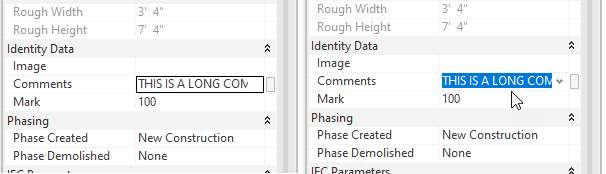
When you move your cursor over the field, as you click...drag the cursor arrow down (or up) away from or out of the field. Done correctly it will select everything in the field. Once familiar with the motion it is quite easy to do.
Originally I realized that clicking in a field past the end of the entry (in empty space) would select everything. That was useful to me but the width of the field is usually not wide enough to do that every time. Yet, every now and then when I clicked in a field I'd select everything. Eventually I took time to notice why it was happening. Happy selecting?!
Saturday, July 29, 2023
Move Room Tool
Following on yesterday's post about rooms and their tags. It occurred to me that a Move Room tool might be helpful (via Dynamo or app). I imagine being able to start the command and choose a room. Then I'd choose between options for This Floor or Another Floor.
If This Floor is selected I'd choose between options for Move All Associated Tags or Delete All Associated Tags and then I'd be prompted for a new location.
If Another Floor is selected then under the hood the room would be deleted, I'd choose between tag options, and then prompted to choose another plan view to open, followed by placing the room in the new location.
Multiple room selection might be useful too? I don't often move a collection of rooms together. It's certainly possible that could be necessary and very helpful if so.
Whatcha think?
Friday, July 28, 2023
Room Tags and Leaders
For many years I wished room tags would turn on a leader IF I dragged a room tag outside of the room's boundary. I got my wish in Revit 2023.1. I also got more than I wished for which is not that uncommon unfortunately, thus the saying, "Careful what you wish for".
When we are moving rooms around things go awry. If we drag a room to a new location the tag turns on the leader instead of bringing the tag along with it like it would for other tagged elements. When I move a room that already has a tag with a leader the leader will update and point to the new room location. However, if I decide to remove the leader the tag returns to the original room location, not its new home. I have to turn on the leader, to wake it up, so it will point to the new room location. Then I have to turn off the leader to get the room tag to jump to its new home. Here's an image of the sequence I describe above.

I should be careful to select the room tag and move it with the room. That doesn't contend with all the other possible views that have tags referencing the room though.
The documentation review and cleanup we have to do when rooms are relocated is a necessary part of the design process, with all the potential changes that can occur. In the past warnings were generated when a room and its tag(s) were not reconciled. We could then deal with those warnings by activating the Warning dialog and clicking the Move to Room button. When such a warning occurred while opening a model we could resolve them all at that time too.
Yes, we'd still have to review and fine tune them most likely but all the tags related to the room would at least be in the room. We can also choose to delete all the tags in a view and use Tag All Untagged. What if most of the room tags were positioned nicely with and without leaders? We'd lose all that work and have to do it over again.
It's my opinion that dragging a room's tag outside a room should be treated as different from dragging a room outside its boundaries and we should have a different result for each.
- Drag a room tag away from its room and turning on the leader is cool and it should remain view specific.
- Drag a room (to within new boundaries) should leave whatever condition is true for all of its room tags but move them along with the room proportionately (see next).
- Drag a room and if there is no leader the tag should follow the room and not turn on a leader. If the leader is active then it should maintain its position relative to the room but move along with it.
- Delete a room and the associated tags should be deleted too (which is what happens). We can then place that room elsewhere and tag as required.
Documentation review and adjustments are unavoidable but these actions should mitigate how extensive the task might be as well as be more consistent with what I'd expect to happen when I move rooms around.
Thursday, July 20, 2023
Slanted Walls Don't Miter
What if I'm asked to create a vertical bottom wall that will transition into a slanted upper wall? Initially the wall configuration looks like the walls on the left in the following image. I added another vertical wall at the top of the slanted portion just for fun.
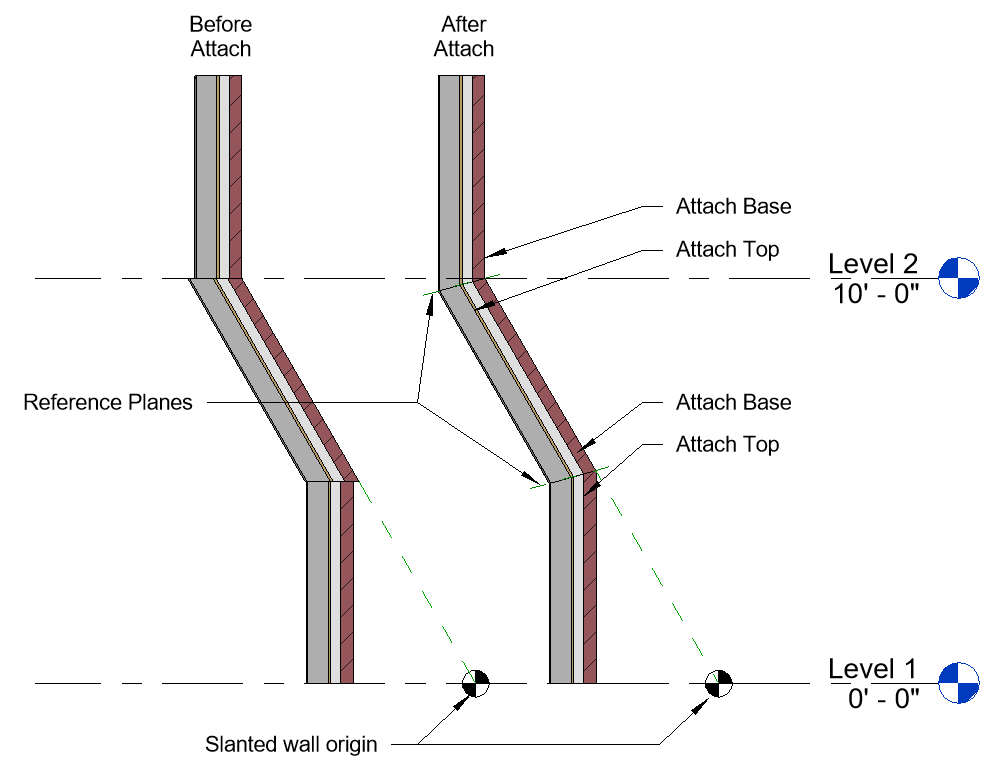
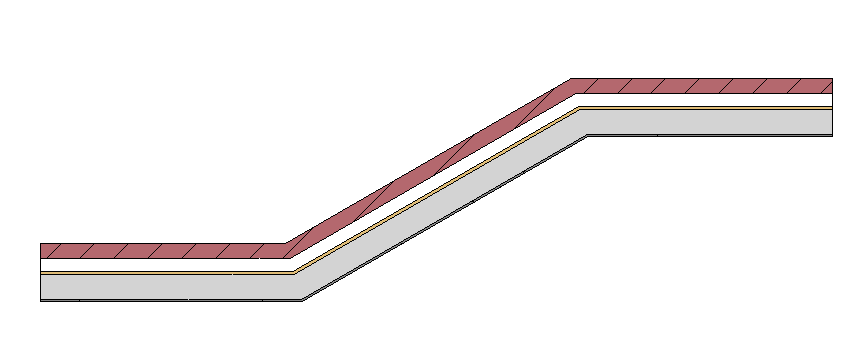
Each wall doesn't know anything about the other so there is no attempt by Revit to miter them together. We might have expected them to join? If we consider what happens in plan views for a similar layout (see image) I don't think it's unreasonable to think that might have happened. If an automatic join occurs in plan views maybe using Join will work in a section? No. Wall Join tool? No. Attach? YES!
To resolve the clumsy look of the left walls and end up with those on the right side of the image we can take advantage of the Attach tool. We just need to add reference planes to define where the miter joint should occur. Then Attach - Top will fix the bottom wall and Attach - Base will fix the upper wall. Repeat as required until all walls relate to each other better.
Thursday, July 13, 2023
Phasing and Replacement Windows
Over the years people have often complained about trying to document replacing existing windows with modern windows but maintaining the existing opening. This means swapping windows with families that are the exact same size. This is related to the wall that Revit creates to infill a wall that has a demolished window. You may have encountered this warning message?

That message appeared when I attempted to place new windows in the New Construction phase after demolishing the existing windows first. I was careful to set up views assigned to different phases and phase filters so there wouldn't be any display conflicts.
I got interested in this issue again recently because of a thread at the Autodesk User Forums for Revit Architecture. A fellow member was sharing how much trouble Revit has been giving them trying to do this kind of work. After some back and forth I narrowed it down to one window family and another member realized that family uses a void to cut the hosting wall in the family itself versus the usual opening.
This led me to write some hypotheses for testing purposes. I wrote:
Hypothesis A: Within phasing we can replace Existing Window A with New replacement Window B using the exact same sizes (same size opening dimensions) IF they both use an OPENING in the family to cut the host.
Hypothesis B: Within phasing we can replace Existing Window A with New replacement Window B using the exact same sizes (same size opening dimensions) IF they both use a VOID in the family to cut the host.
If either of the above are false then...
Hypothesis C: Within phasing we CANNOT replace Existing Window A with New replacement Window B using the exact same sizes (same size opening dimensions) IF one uses an OPENING and the other uses a VOID, in the family, to cut the host.
I did some testing using the latest release of Revit, 2024.1 and I determined the following:
Hypothesis A is TRUEHypothesis B is FALSEHypothesis C is neitherI find that I can replace a Void based window with an Opening based window but not the reverse. Also any alterations to the hosting wall in the project; such as length adjustment, or top/bottom offsets, attach/detach will place the void type window at risk of being deleted. Weirder still is that it might not delete all of them, one or more.
It seems that the short answer is: eliminate window families that use a void to cut the hosting wall IF you intend to place identical sized windows in phased projects; to demonstrate existing window replacement without altering the existing openings. Windows created this way will not work for this task. A logical next hypothesis is to anticipate similar behavior in door families.
I speculate that this warning happens because an opening cuts fully through the host while a void (or combination of voids) might cut more and/or less of the host as it travels through it. I suspect that the infill wall can't abide the shape a void might create and that in turn means a void won't be viable as a window to alter the location of the infill wall. I think it's similar to curtain walls only supporting non-rectilinear panels with the system panel families.
I'd love to hear that the developers will test this against their own experience and expectations. I know that a lot of people rely on voids to shape the opening in a host wall to match a variety of actual construction techniques for openings. To eliminate voids in families as an option for this kind of project (replacement windows (and doors?)) is not ideal. They'd probably have to revisit the entire logic of infill elements where demolished hosted elements occur. Perhaps leave it up to us to fill in holes?
Wednesday, July 12, 2023
Revit 2024.1 Now Available
Like the post title says, the latest release/update is now available. Read all about it at The Factory blog.
Friday, June 30, 2023
Revit 2024 - Template Views Crop Boundary Controlled by Scope Box
There are new multi-discipline templates for Revit 2024 (imperial and metric).

In the new multi-discipline template the views that are placed on sheets are controlled by a Scope Box. When you look at the properties you'll notice that Crop View is disabled (gray).

We can turn off the visibility of the crop boundary but we have to disable the association with a scope box if we want to change the crop independently. Of course if we like and want to take advantage of the scope box being defined and used for the views, we need to open a view that isn't constrained by the scope box so we can adjust the Scope Box extents (it's called Views Overall)
Subscribe to:
Posts (Atom)