Showing posts with label Properties. Show all posts

Monday, July 31, 2023

Dept of Subtle - Select Everything in a Property's Field

Sharing this because someone observed me selecting a parameter value and was curious about how I selected everything. If they didn't know...maybe you don't either?

When you just click in a parameter field in the Properties Palette or Type Properties dialog the cursor will usually land where you click. You can use Home or End keys to move the cursor to beginning or end of the entry. You can also use the CTRL + A button to select everything in the field.

If you want to select all of (with the cursor) what is entered, in order to replace it entirely, this is very subtle...
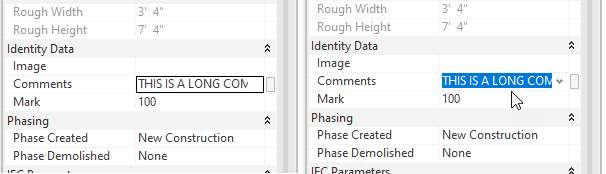
When you move your cursor over the field, as you click...drag the cursor arrow down (or up) away from or out of the field. Done correctly it will select everything in the field. Once familiar with the motion it is quite easy to do.

Originally I realized that clicking in a field past the end of the entry (in empty space) would select everything. That was useful to me but the width of the field is usually not wide enough to do that every time. Yet, every now and then when I clicked in a field I'd select everything. Eventually I took time to notice why it was happening. Happy selecting?!

Monday, December 30, 2019

UnHelpful Help Location URL

I read about quirky Reviteristic issue at RFO this afternoon. A weird graphics glitch occurs when we interact with the Help Icon families that use the URL parameter feature to reference an external document. This is an example of it in the sample architecture model that ships with Revit (rac_basic_sample_project.rvt - in imperial content).


When we select the icon and examine its properties we get this Learning Link parameter.


When we click in the field the small button appears with the ellipsis icon. Clicking on the that button will take us to the URL saved in family.


The trouble begins after we move our cursor away from the field and start to resume work. The URL is stuck on screen over another parameter like below, the Detail Number parameter for the view.


I noticed that I can work past the issue if I click in the Default Analysis Display Style field, which I presume works because it also has an navigation/ellipsis style button.


I also noticed that if I am careful to click on the field right above the Learning Link, called Location, before leaving the Properties Palette I can avoid the issue too.


The forum thread was talking about this in 2019 but these images are from 2020.2. 

Saturday, May 11, 2013

Switch Between Palette and Browser with Keyboard Shortcut

With the new dockable window feature that supports hosting the Project and System Browser (MEP), Reconcile Hosting Dialog and Properties Palette comes the slight awkwardness of never having what you really want open (having focus) when you want it.

This video shows how assigning a keyboard shortcut to the Properties Palette gives me the illusion of switching between the Project Browser and Properties Palette quickly. I write illusion because the Properties Palette is really closing but then reopening within the dockable window framework. Try it, like it...mileage may vary.


Monday, March 04, 2013

Access to Feature Redundancy

When we examine the Revit interface we find that we can change the scale of a view at the bottom of the view on what is called the View Control Shortcut Bar. If you happen to keep your Properties Palette open you've probably noticed you can just change the scale value there too? It's the same situation for Detail Level and Model Graphics Style. In the image below the items highlighted in yellow (even some running off the image) are all represented on the View Control Shortcut Bar too.


This can seem a bit odd or redundant to fresh eyes. If you've been staring at Revit for a number of years you probably remember when it was necessary to open a dialog to see those settings. The View Control Shortcut Bar let us change things without opening a bloody dialog box again. Today it seems a bit unnecessary to have some of the view control shortcuts, unless you close the properties palette.

As I've written before, in Revit there are numerous doors you can open to gain access to features, front, back and side doors...even some secret doors. Maybe they are bit redundant but if your cursor is closer to the bottom of the screen you can take the "side door" to scale or detail level instead of hopping on your scooter and driving up to the top of the Properties Palette. With the serious resolutions available on some monitors these days it could be a long ride.

Wednesday, October 05, 2011

Schedule Features Not Available

When you examine the Appearance properties of a schedule, say for doors or windows, you are teased with a couple options that are inaccessible.


Those are only accessible when you create/edit a title block family and deal with a Revision Schedule.


Only revision schedules can fill out Bottom-to-Top and/or have a fixed schedule height assigned, sorry!

[Edit: Oh, when I highlighted the images I included the check box for "blank row before data", obviously that is available in either schedule situation. I should have limited the width of the box.]

Sunday, July 11, 2010

Proper Properties Palette

I have to admit that I'm quite happy with the Properties Palette. During a period of time that I can't claim to have been part of or witness thereof I was a bit less happy with it. I no longer find myself closing it accidentally and like the ready access to information. I have settled on putting it over at the right side of the UI, like this.


What about you? Anyone like it stacked above the Project Browser? I just didn't like them both getting squashed. For Revit MEP it does compete with the default location of the System Browser, which I prefer at the bottom of the UI. Since most of my work involves people using the stock deployment I don't spend much time customizing my UI or setup because that puts me in a different environment than the students. I do prefer the "light" style over the "dark". I also prefer the QAT below the ribbon so I can see more of the title bar.

Speaking of students and different environments, one item that proves a bit confusing at times is the way the UI squashes panels and tools on the ribbon when the resolution is coarser than fine. This means that my projected screen often has a slightly different presentation than the student computers...leading to confusion when telling them to click here or there...etc. Fun fun!

Tuesday, July 15, 2008

Dept. of Reviteristics - Properties

When your cursor is in a view it's View Properties
When you select a view in the Project Browser it's Properties
When you select an element in the view it's Element Properties
When you select an element in the Project Browser it's Properties
When you select a viewport on a sheet it's Properties
When you right click on a sheet it's View Properties
When you are in sketch mode the Properties Button works on Sketch Elements
When you are in sketch mode the Element Properties moves to the Design Bar
When you use Keyboard Shortcuts it's PR
When you use Keyboard Shortcuts it's VP

Properties, Properties, Properties...there are probably more...

Tuesday, June 24, 2008

Properties Dialog Access

There are a multitude of ways to open the properties dialog. The most obvious is to select an element and click the Properties Button. Of course you can use the Edit menu > Properties. Doing that should make you aware of the "PR" keyboard shortcut (stock shortcuts).

If you are a "Right Clicker"...then you can choose Element Properties from the list, it's the one all the way at the bottom. Don't be fooled into thinking that View Properties is what you want, "View" in this case isn't a verb.

A couple less obvious items are to use Windows Keyboard shortcut combinations, and there are a lot. I find that I just can't remember enough of them which means looking them up counters their effectiveness. Unless you can manage to replace something else you want to remember with some new ones?

You can use this combination, Alt+Enter to edit the Element properties of your current selection. Once open this combination, Ctrl+Enter will toggle back and forth between the Element and Type properties dialogs.

I should also mention that there is always the ALT key plus menu letters combinations. Depending on your Windows settings pressing the ALT key should display little underlined letters in the menu. Pressing ALT then the underlined letter will expand that menu and then you can do the same for the next level until you get where you want to go.

For properties it would go something like this: select something
Press ALT, press E, press I (twice because I is shared with Resize and Properties)
Press Enter, Press E to open Type Properties dialog.
It is actually much quicker than it looks but no, I'm not suggesting it is faster than just typing PR (keyboard shortcut).

Got properties?