Showing posts with label Join. Show all posts

Thursday, July 20, 2023

Slanted Walls Don't Miter

What if I'm asked to create a vertical bottom wall that will transition into a slanted upper wall? Initially the wall configuration looks like the walls on the left in the following image. I added another vertical wall at the top of the slanted portion just for fun.
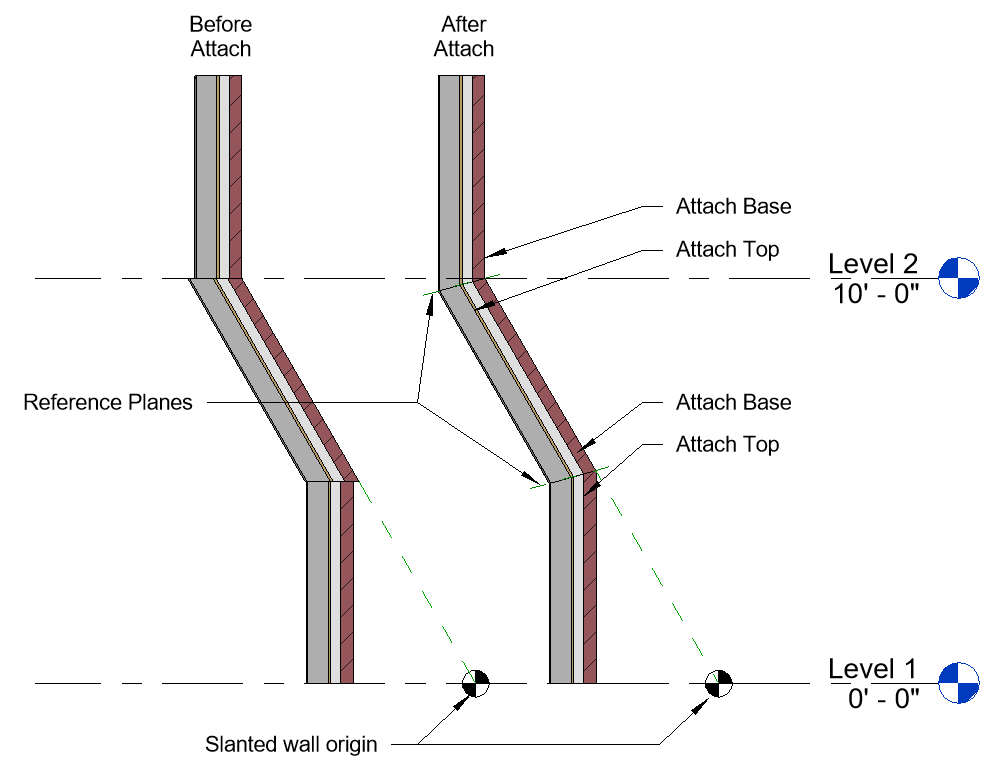

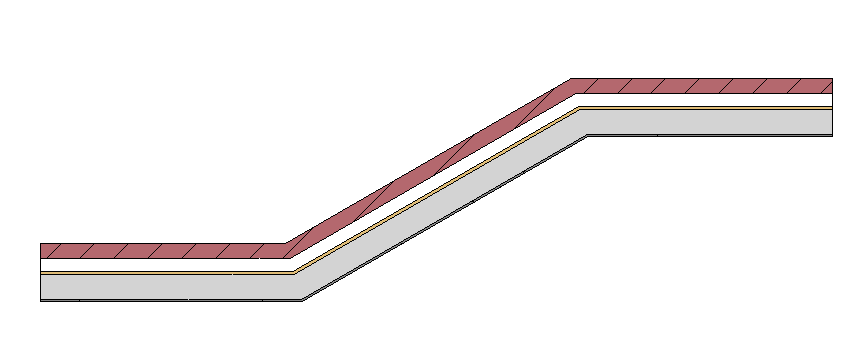
Each wall doesn't know anything about the other so there is no attempt by Revit to miter them together. We might have expected them to join? If we consider what happens in plan views for a similar layout (see image) I don't think it's unreasonable to think that might have happened. If an automatic join occurs in plan views maybe using Join will work in a section? No. Wall Join tool? No. Attach? YES!

To resolve the clumsy look of the left walls and end up with those on the right side of the image we can take advantage of the Attach tool. We just need to add reference planes to define where the miter joint should occur. Then Attach - Top will fix the bottom wall and Attach - Base will fix the upper wall. Repeat as required until all walls relate to each other better.


Wednesday, April 29, 2015

Revit 2016 - Edit Multiple Wall Joins

We can select more than one wall join intersection and Allow or Disallow Join. Start the Wall Join tool, press the CTRL key and select each intersection that you want to alter. Then choose the join condition you want.

We can use a window selection and we can also use the TAB key to select several wall intersections at once, according to varying circumstances. If there are no intersections that have already had Disallow Join applied then you can potentially select all the intersections in the same manner as we can select a chain of walls with the TAB key.

It is a bit fussy when using the Allow Join option after using Disallow Join. The walls don’t heal automatically. Initially it seems that using Allow Join only changes one of the two walls at each intersection back to allow a join to occur. The icon for Join appears for one half of the intersection each time. We might infer from this that it is necessary to select a grip and drag or at least wiggle the connection a bit to get them to join back together well.

It is important to realize that there are two walls at each intersection and it is necessary to select them both! If we are careful to select them both then the walls will heal up nicely.


Here's a short video (1 min) to demonstrate it.