Showing posts with label Structural. Show all posts

Monday, June 17, 2024

Short Curved Walls and Non Core Layers

At Autodesk Revit forums I saw a post regarding disappearing curved walls. These walls were shorter than the current view range cut plane. When the Wall subcategory Non Core Layers is turned off only these curved short walls disappeared. Other walls of the same type that were straight remained visible. It looks like a bug to me.

In my testing, when the sub-category for Non Core Layers (Detail Level must be Medium or Fine) is turned off the wall will disappear when it's height is not at least 2 feet above the cut plane setting. For example, I can make a wall disappear if it's height is less than 6 feet when the cut plane (view range) is 4 feet. Enter anything 6 feet or higher and the wall reappears. This image is some full height walls and some walls that are 4 feet tall (lighter gray walls).

This is the setting I turned off in Visibility/Graphics.

This is the result, the curved 4 foot tall walls are gone.

I suppose, in their defense, they could argue that the reason it is possible to turn off non core layers is to be able to isolate, only show, the structural portion of walls. As such a curved wall that is not tall enough to reach the cut plane is not likely to also be a structural/bearing wall. At the very least it is unexpected to have a wall disappear only because it is too short and curved.

Cue Randy Newman, "Short walls got no reason..."

Monday, May 20, 2019

Structural Column Disappears in Detail View Type

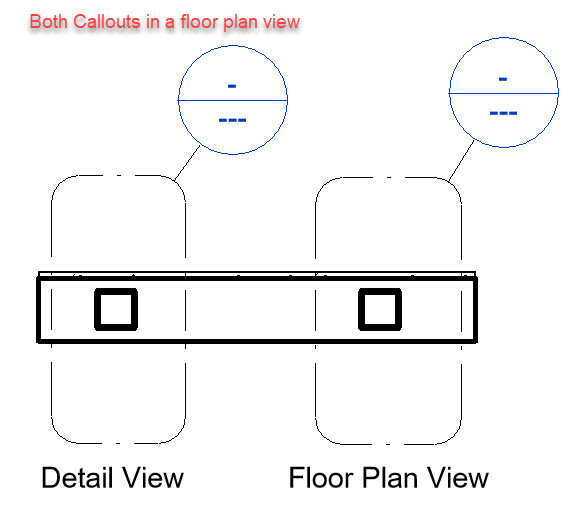
When we create a Callout within a plan view we can choose between Floor plan and Detail. A structural column that uses a negative offset won't show up when a wall exists in the same location when a Detail view type is used. It works fine in a Floor plan view type.

Here are some example images. The first one is showing the negative offset used. If the offset is zero then there is no graphical issue, the column shows up.


This image shows both callouts in the overall floor plan, Detail on the left and Floor on the right.


This is the Floor Plan Callout, column shows up as expected.


This is the Detail Callout, no column is visible.


This is the same Detail Callout but my cursor is hovering over the column and Revit sees it, highlights it despite not being visible. The wall is masking the column.


This is the same Detail Callout but the view is changed to use Wireframe and the column appears.


It boils down to the negative offset applied to the column. The graphics hierarchy does not respect the full height of the column and the wall element is drawn over the structural column. We can also get around the issue if we edit the column family and remove the option: Show family pre-cut in plan views.

Friday, October 28, 2016

Structural Plan View - Column Symbolic Offset

From the Dept. of Subtle we only find this parameter in Structural Plan views.


The help documentation says we can use this to "Specify the offset of a beam join to a slanted structural column. This only applies to coarse detail levels.". I've mocked up some framing to see what it does.


In this next image I've changed the offset value to 5'-0". You'll notice that the column symbol moved down toward the bottom of the column.


In this next image I've changed the offset value to -5'-0". You'll notice that the column symbol moved up toward the top of the column.


If a column doesn't pass beyond the view's level a negative value doesn't do anything to change that column's symbol location. Pretty subtle...

Thursday, August 07, 2014

Structural Column Preview does not Show

Daniel Stine shared this situation with me the other day. It may be familiar to you too?
Revit has a glitch in how it deals with the structural column preview (i.e. outline of structural member relative to the cursor) during placement. Working with Autodesk Support, the problem comes into play when the Levels are “Moved” vertically (the problem kicks in after a certain distance – not sure what the magic number is yet).
These are the steps he described that will (should) reproduce the problem using the out of the box (OOTB) structural template.
  • Open the structural template
  • Switch to elevation (or section)
  • Select the levels and move them up 100’
  • Switch to the level 1 plan view
  • Try placing a structural column
  • The preview (i.e. outline of structural member) should not be visible but it it will appear after placing the first one
Dan also mentioned:
In testing this, the problem does not occur when using the Relocate Project tool and changing the Levels to use the Elevation Base parameter setting: Survey Point. We submitted this to Autodesk and support has passed it on to development for a closer look. This is one of those little annoying things for our staff.

Monday, February 03, 2014

Change a Family's Category

Most of the time we can change a family's category. We can open the family, click Family Category and Parameters and choose a different category.


An exception to the rule is when we attempt this with a family that is already assigned to the Structural Framing category. Revit will let us think we've succeeded until we try to use the family in a project or reload it.


The special Revityness of structural framing prevents this transition. If you've already loaded and created an instance of the family in a project Revit will generate an error and invite you to delete the family type(s). The moral of the story is "don't because you can't".

Saturday, January 04, 2014

Autodesk Robot Structural Analysis Book is Available


Ken Marsh published his first book dedicated to Autodesk' Robot Structural Analysis Professional 2013 (it's also the first book for it). He intends it to be your essential introduction to its features, functions, and workflow. He's confident that you will be able to master the tools you'll need to make Robot work for you.

Some of its highlights include:
  • Demystify the interface
  • Manipulate and manage Robot tables like a pro
  • Learn how to use Robot's modeling tools
  • Master loading techniques
  • Harness Robot automated load combinations
  • Decipher simplified seismic loading
  • Discover workflows for steel and concrete design
  • Gain insights to help troubleshoot issues
He's prepared easy guided exercises to help get you up to speed quickly.

Ken is a structural engineer and was, until recently, the Revit Structure Quality Assurance Analyst at Autodesk. He works hard to be a champion of Building Information Modeling (BIM) technology for the Architecture, Engineering, and Construction industry. In addition to writing this book he is currently working to promote fully integrated structural analysis, design, and documentation by developing custom Revit API add-ons, providing software training, and consulting services for firms as they transition to a more fully BIM-centric process.

I appreciate and admire his willingness to write about a topic, that must be a niche among niches, catering to structural engineers. I was also curious about whether a 2014 edition is going to be available, he replied that he's working on the 2014 edition now.

All the best with the book Ken!

Thursday, November 01, 2012

Filter Pesky Levels

Need another way to manage the Levels of linked files? Sure we can assign them to specific worksets and have matching worksets in our model. Sure we can edit the V/G settings of the link in views (and view templates). Here's another, use a Filter and the criteria "Structural" that is available for levels.

When you examine the properties of levels you should find the parameter Structural. If the engineer uses that for their levels and you don't, then this concept works.


Now build a Filter that hunts for levels with the Structural parameter.


This is before the filter is applied.


This is after the filter is applied.


They can do the reverse by reversing the logic of the filter, Structural = no.

Happy Filtering!