Showing posts with label text. Show all posts

Tuesday, May 03, 2016

Revit 2017 - Text and Character Map Use

I mentioned the other day that a user had shared with me some difficulty using symbols from Character Map (charmap). Autodesk has written a Knowledge Base article about. Hopefully the first service pack (Update Release...whatever they call it this time around) will fix it.

Read the article at Autodesk.

If you'd like to watch an Autodesk Screencast video and the thread at the Autodesk Community Revit forums CLICK ME.

Fwiw, in my testing I'm not having any difficulty with inserting symbols via the ALT codes or copy/paste. There must be a bit more subtlety to the issue.

Tuesday, April 26, 2016

Revit 2017 - Text Element Error Message

I created a drafting view and placed a single text element. I type a simple sentence and then clicked the new Close button on the ribbon. I received this nonsensical warning for my effort.


Doesn't seem to matter what view I am placing text in, clicking the Close button pops up the warning. I'm curious if others are seeing this too? I was using the stock architectural template from the Imperial Library. Simple fix is to just finish text in the same old way, don't use the Close button.

Edit: A little more testing and the plan view Level 1 doesn't seem to mind anymore. When I tried it again in the Construction template the floor plan view Level 1 didn't complain but Level 2's did and the Ceiling plan for Level 1 did too. Okay...more weirdness. This is after placing text in an Elevation view.


Traded emails with Aaron Maller last evening and pinned down the circumstances that this issue is reproduceable. It boils down to placing text in a view and then placing text in another view while the previous view is still open. Revit doesn't seem to recognize that the new text is in a different view when the Close button is used. Here's a video explanation.


Friday, April 22, 2016

Revit 2017 - Upgrading Text Warning

In my earlier review of the text editor I included this warning:
When you upgrade from older projects you're going to have to deal with text changing to reconcile these changes. That means you CAN'T upgrade a project a couple days before a major deadline and expect to just hit print.
I should have also said that means anything that has text in it, like tags, title blocks and so on...

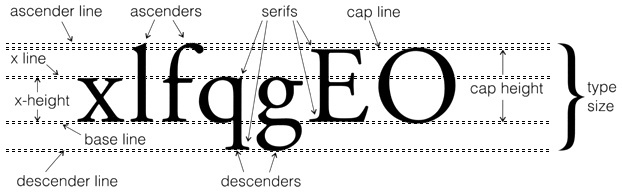
My post mentions that text height is defined differently, more like AutoCAD. The help documentation offers a graphic and an explanation of what has changed. I also marked up this image from Dynamic Statements to indicate how the text height is defined now. The overall height is based upon the capital letter M, measured from Base Line to Cap Height (for M). That's apparently more like how AutoCAD does it.


Brian Mackey (The Revit Geek's Blog) has written two posts about what he's observed happen with an upgrade so far. This is the FIRST and this is the SECOND post. Damien Ferlazzo (Revit Link blog) shares his experience upgrading text so far with his POST. Check out their posts.

I've also read a couple of threads in forums from users sharing what has happened with their TEST RUNS at upgrading. I emphasize that TEST RUNS because at this point that is exactly what we should be doing.
Please, please, pretty please with sugar on top...don't upgrade and expect to just carry on without reviewing everything very carefully. You (we all) have some text fixing to do!
P.S. As I was finishing this post I just heard from someone that they are having some issues trying to use the ALT codes for special characters via Character Map. I also heard that some text types were not editable at first but closing the view and opening it again helped for some reason. I'm sure there will be more to come as more people start using it seriously.

Friday, April 15, 2016

Revit 2017 - Text Editor Features

Long awaited, much rejoicing was heard when Revit users heard the news, there is a new text editor. Really? Can it be true? Yes they've revisited the text feature in Revit! Will you be pleased or at least happier? They certainly hope so.

Initially things don't look different. You still click the Text button and find text defined by Types. Text Types have the same Type Parameters we've had before. Prior to clicking to place text the ribbon is still the same too. You click to place text in the same way. Once you've done that you'll begin to notice some differences, namely in the context ribbon panel.


To begin with you'll notice, on the right end of the ribbon, that there is a Close X button, a formal front door to finish editing text now. The only way to finish editing before now was to click in empty space, outside of the text element somewhere.

On the paragraph panel you find the same list of choices for indenting, bullets, and outline formatting with numbers or letters. There are two new buttons to increment the indented list. This permits us to increase the starting value of a list. Similar but a little different from a word processor like MS Word.


The previous image has different text elements for each indented (numbered) list. We can insert a space in a series of notes and have the numbering continue within a single text element too. It is a bit quirky however. I find it only works if you create the numbered or bulleted lines first and then go back and use CTRL + Shift to insert the blank line between the list sections. Here's another example using this technique instead.


You'll probably suspect or notice that I used a separate text element for the header of the notes. That's still necessary because the text types don't support overriding font height, as before. Indented lists that use one of the four bullet or numbering options cycle through each of the four choices when you Indent a line, like this.


I can guarantee that someone has a numbering syntax they want that the text editor doesn't support; if yours doesn't match the above I'm correct. FWIW, this IS the first outing of the brand new engine in the car so we'll have to take them at their word that they'll continue to improve on it with future updates and releases.

Also new are buttons for Superscript, Subscript and All Caps. As you can see in the next image All Caps is currently active which is causing everything I type to use uppercase. It is worth noting that all the text will be displayed during editing, a result of their abandoning the special text editing canvas we had before (fixes zooming too, more on that later).


The new editor supports Fonts that can range from 1 - 1638 points and the maximum and minimum height of text is determined by the font. As I understand it, this means for Arial this translates to an approximate range of 0.1” to 16.3” or 0.3 mm to 413.6 mm. A text note also has a maximum width of 84” or 2135 mm.

Empty Text Notes are allowed if there is a leader. If the leader is removed the Text Note will be removed (if it does not contain text). Those people wanting to just place a leader have just experienced a spike in their heart rate.


This means we can place just a leader next to a View Reference family that, as a tag family of sorts, remains leader-less, sad view reference family...sad face.


When editing the user has the option to always have the border displayed and the option to always have the note display with an opaque background. That is determined by accessing the Edit Text options via a sneaky arrow button under the Close (text) button.


They've managed to fix the zooming issue we've had with editing text. When we are editing text zooming in and out of the view doesn't influence the text element negatively now. As I mentioned briefly earlier, you'll notice that we don't enter into a special text editing canvas anymore. The rendering engine that generates what we see on screen has been reworked to permit this to behave better. That's a welcome change.

I still think it's wise to use the Zoom Sheet Size feature to get a better sense of proportion while editing the text. With what is possible with screen resolution these days though it's not uncommon to find it quite hard to edit text without zooming closer to it. The same could be said of the schedule editing view too, which remains unaffected by these changes however.

Did you know that fonts are complicated? The more you know about something the more complicated it is, like life I suppose.

Part of the process of building the new text editor involved comparing how Revit worked with AutoCAD. As a result, they've revised the method for measuring text size to be a bit more like it (AutoCAD). In the past the size of text was measured from the font baseline to its ascender line (that's technical font speak). Unfortunately typical characters do not extend to the ascender line. This means when we attempt to measure the resulting font we usually don't get a result we'd expect. As of 2017 the size of text will be based on using the font's cap height, which is measured from the baseline to the top of the capital letter "M". That decision was based on customer feedback and further review of AutoCAD's own code.

There are still going to be some differences if we observe font generation in both programs very closely, in particular when it is exported to DWG. A developer explained it like this. In Revit when you want a certain text size in length units it has to pick a size that matches as close as it can in point size, for example 12 pt Arial. Revit selects a size in 1/2 point increments. This rounding affects measuring where a paragraph will wrap to the next line. This means the text size or the text note width cannot be exactly reported if exported. No font is identical to another, the spacing between characters is different so it isn't possible to accurately scale it based on the width of the note either.

Are you familiar with these settings governing exporting Text to DWG format?


These influence how Revit decides what is most important to you during the export. Preserve visual fidelity is most appropriate when we want the text to LOOK as close to the same in Revit and AutoCAD as possible. Use Preserve Editability when you're more interested in matching the size of the font as close as possible; which may result in different looking bodies of text in AutoCAD. Put another way, if you want the paragraph to look the same, wrapping and number of rows of text then choose the first. If you're more interested in being able to select the text in AutoCAD and see the same text height (again as close as Revit can do it) value then choose the second.

Yeah...complicated...

Known Issue - Open Type Fonts (OTF) not supported yet, due to issues exporting to DWG

Finally, when you upgrade from older projects you're going to have to deal with text changing to reconcile these changes. That means you CAN'T upgrade a project a couple days before a major deadline and expect to just hit print. Then again, when has that ever been a reasonable expectation or assumption? Lucky that for the most part it has been practically true. In this case they've completely re-written the underlying text editor code so it's not likely to be as uneventful as some upgrading has been in the past.

Friday, January 08, 2016

Text Box Boundary Quirk

I read a thread at AUGI describing an issue where the Show Border option to create a box surrounding text fails to completely surround the text it contains. First, if you weren't aware of it, each Text type has a type parameter called Show Border.


The Show Border feature worked fine until I used the Underline override to put a line under the NOTES: heading. It also happens if I use any of the other overrides; Bold or Italic.

I created the following video to show what happened.


Seems easy enough to resolve, just use separate text for the heading. Unfortunately I found that Show Border fails to work properly if the text is altered later too. Just adding a new line to the text is enough to confuse the border/box. Sadly this means the concept of Show Border is fatally flawed...

Tuesday, April 21, 2015

Revit 2016 - Multiline Text Follow Up

Tom kindly shared some more images and thoughts on this subtle new feature that Autodesk even forgot to mention. Tom's images do all the talking, thanks Tom!


Monday, April 20, 2015

Revit 2016 - Multiline Text Parameter Type

Tom Dorner wrote to me to share what he observed while he has been getting acquainted with Revit 2016. It's a new Type of Parameter called Multiline Text.


When you see it in the Properties Palette it offers up a small Browse button. Tom commented that he thought it would be better if it was an Edit button like the one that Model Text use, I'm inclined to agree.


Clicking the browse button opens the Edit Text dialog.


I'm still waiting for my download to finish so I can get it installed myself and check it out more closely. I'm curious how it will behave if the parameter is used in a schedule or tag. I haven't seen any evidence that Autodesk is taking credit for this addition in the What's New information they've made available so far.

Saturday, March 07, 2015

IF Formulas and Notepad

A good tip was shared (by Josephpeel) at RFO the other day. If you use a Tab or Line Break in Notepad to make it easier to understand a lengthy conditional formula they won't affect the formula when you paste it into Revit.


Just make sure you put the closing parenthesis on the last line, as shown in the image. Revit doesn't seem to understand the copy/paste formula properly if you put them on their own line (at least that's my finding).

Sunday, February 15, 2015

Schedule Text and Width Factor Fidelity

Schedules in Revit 2015 are able to use any of the text styles defined for a project. Text styles have supported the use of a Width Factor for several years. In schedules however this width factor is not observed so there is a loss of fidelity when comparing text elements and text that appears in schedules. The text above and below the schedule lines are using a width factor of 0.75 but the schedule rows do not look that same despite using the same text style.


Log this under Fit and Finish?

Saturday, February 14, 2015

Text Formatting with Bold and Underline

Text is a common source of frustration in Revit. Replacing, improving the text editor remains a top rated wishlist item. Jean-Marc wrote to me the other day to mention something that I can assign to the Dept. of Subtle. If you use Bold and Underline on a portion of text and then transition to normal but still underlined Revit text doesn't deal with the underline transition well. Here's a comparison between what happens in Revit and Word.


I don't often use text but when I do I'm always wishing for that new text editor.

Wednesday, May 14, 2014

No Print Text

A fairly common request is a special text that won't print. This would let us add comments to various places in the model for other people to act on. Filters don't see annotation categories either, at least not Text.

One approach we can take is to use a Detail Item family because Filters do work on them. This means instead of placing red text, we place a Detail Item family that has a red text formatted label that we can enter whatever comment is necessary. Then we can apply a Filter using the Family Name as its criteria to find all of them and turn them off in Visibility/Graphics.


A bonus is that Detail Items can also be scheduled since the release of Revit 2014. This means we could schedule them to provide a summary of comments or remarks that have been placed in the model for action. Add a parameter for "Resolved, Resolved By and Resolved Date" (and perhaps more) and users can indicate when the comment has been acted on, by whom and when.

It is also possible to create Saved Selection Sets. Select all the Red Text, Save a selection Set. Then that selection set can be used to create a Filter. For example in the following image, I've created a Saved Selection Set of text called No Print Text and then created a Filter to control it in the view.


If you've got a Saved Selection Set you can Load or Edit them via the Manage ribbon > Selection Panel. If you select multiple elements then the Selection panel appears and you can also Save your selection set.


Be sure to check out the Selection Set features and not just for this!

2014 Revit OpEd

Basd on a comment I've edited the post and added the following (March 27, 2015)

If you'd like to experiment with a sample of this click the links to either download the family or a project with the family and a schedule in place to see it wall working together.


Download an EXAMPLE DETAIL ITEM
Download an EXAMPLE PROJECT USING IT

Friday, November 01, 2013

Finishing Text

I read a post at AUGI tonight that mentioned using the Modify button on the ribbon to finish typing or editing text. The intended technique to finish typing text is to click out side the text box. If you look at the Status Bar when you are typing text you should see this instruction: "Edit the text and click anywhere in the view to finish editing".


In my opinion "anywhere" isn't accurate, technically you have to click anywhere but within the text box. I think it's more accurate to say, "click outside or away from the text to finish".

The complaint in the post was that using the Modify button sometimes results in the text vanishing. It is still there but not visible until you manage to select it again or refresh the view or do something else that refreshes the view. I find that the text vanishes IF I am creating the text and click Modify. If I just edit existing text the text doesn't disappear when I click Modify to finish.

I don't think clicking Modify is "intended" behavior or that it is supposed to properly finish editing the text. It does work if we've begun typing some text, or edit some text. If we've only clicked on screen and then click on Modify the "empty" text box is not left behind. A similar result will occur if I just start another command like Wall, or Door. My observations are based on using Revit 2014.

I'm sticking with the intended "...click away from text to finish...".

Tuesday, April 09, 2013

Language Flexibility

There are a few things that are hardcoded values that we can't do much about. For example the word "Grand Total" at the bottom of a schedule or "As Indicated" for view scale when used as part of a sheet's titleblock. The choice of words, the language used and formatting all  remain out of reach still after all these years. It would be excellent if these were added to project settings so a team could define what these should say. It's all part of refining the product itself and the documentation we produce using it.

Saturday, February 09, 2013

Leaders

I know people care a lot about where leaders start on blocks of text. Some want them to start at the first line, others at the bottom line and still others at the center of the text. Personally this has always felt like fussiness, focusing on trees and missing the forest. For eleven years I spent some of my time reading drawings to either bid on a project or to try to build something with them. I never got upset about such things. I WAS frustrated when the leader didn't point at the correct thing or fell short of "something" to point at. Where the leader started never confused me as long as it was clear which note it belonged to.

For my time and money, as long as they are consistent I'm satisfied. Unfortunately Revit isn't in this regard. Text has settings for leader positioning that keynote tags don't. That can lead to inconsistency and that's not good. Any annotation features that are available for text should be extended to other elements that display information that sure looks like text when looking at a printed sheet of paper. My 2.5 cents.

Thursday, January 31, 2013

Keep Readable

Text elements have a property called Keep Readable. This prevents the text from being displayed upside down and reorients rotated text elements so they are "readable" from left to right and bottom to top. As soon as text transitions past 90 degrees and then between 180 to 270 you'll find the text flips to ensure that it is easier to read. All of this is true for text in a project view.


In a family the text elements share this parameter but it doesn't matter if you check it or not because the family governs whether text remains easy to read. This setting (Keep text readable) governs all text, even nested label families, in the family setting.


If you are working in the Family Editor you only need to worry about this one setting to force all text and nested label families to behave, so to speak.

Wednesday, March 30, 2011

Dept. of Subtle - Illegal Characters

I'm not referring to characters in a play, novel or movie but the characters we use in filenames. Revit will complain if you attempt to use them to name a view, sort of.


If you create a drafting view and use something like "1/2:12" it won't complain. Try to rename it and you'll be in trouble with Revit. An odd quirky item to be sure.

In general you don't want (I think you don't) to use these characters for view names because they get used to export to dwg/ifc/pdf etc. These characters will create errors when Revit tries to create the file using them. Don't use them in your title block drawing titles either for the same reason. I decided to post this after reading a post at RevitForum asking if anyone else had noticed the subtle name>rename peculiarity.

Curiously...no such complaint when you do the same thing with Legend Views, hmmm.

Friday, September 12, 2008

Opaque Text Exports

This THREAD at AUGI elicited a useful bit of information, like many do. Steve Faust writes in response to a post that Revit is exporting dwg text poorly.

"It's an option in ACAD to have "Background Masking" which is essentially the same as opaque text in Revit. Revit is trying to keep the export looking the same as your Revit drawing as much as possible. If you want opaque text in Revit but not in CAD, you'll need to open the Autocad drawing, use Quick Select to grab all the mtext, and turn off background masking in the properties panel."

This is a screen capture of the topic in AutoCAD 2009's help documentation:

Thanks Mr. Faust!

Tuesday, March 04, 2008

2009 Feature - Dept. of Subtle - Text Styles

I wrote something in the past suggesting that "Text" ought to become a full fledge citizen in the "Settings" menu. In all past releases of Revit there was no way to edit Text Styles without first invoking the Text tool. Well those days are or will be gone shortly. A new neighbor will join the Settings menu > Annotations other tenants Arrowheads, Dimensions and Loaded Tags, namely TEXT!

I'm sorry if I seem excited about something "trivial". I'm not, but pleased nonetheless that something subtle got addressed and didn't even make it into the "What's New" presentations circulating the net. Thanks!

Tuesday, January 16, 2007

White Pawn takes Black Knight

Recent newsgroup question, "How do I get white text over a black background?" Like this:


Here's how:


Use a filled region to create the black background then edit your text/labels.
[True for 2009 and previous]
Color: White
Background: Opaque.

Amended for for 2010
Color: RGB 251,251,251 (nearly white, RGB 254,254,254 is displayed "black")
Background: Transparent

That's it!

Caution if you export sheet views to dwg you'll need to adjust your pen table to plot the text correctly. If you assign the text on the titleblock to its own layer you can tell AutoCAD to plot them using the object color so the text will plot over the background hatch. There are probably other options as well.