Showing posts with label Worksets. Show all posts

Friday, March 19, 2021

BIM 360 Linked Revit Models use Local Cache Path

We've been running into this situation lately. Linked Revit models start using an individuals collaboration cache location for the path instead of the project's BIM 360 location.

At first it seemed that we could resolve it easily by applying the update for Revit 2020. Most of the active projects I deal with are still based on Revit 2020.

It appears that a fair number of firms are deploying "even" years and skipping the "odd" years. The larger the scope of deployment seems to have some influence over that choice. I've been working with 2021 in smaller situations though, wishing it were true everywhere...I digress.

Autodesk acknowledges the issue and has this ARTICLE to contend with it.

Wishing it were that simple, we are still running into it. Naturally there is another ARTICLE that mentions they are still researching the issue but that using Force Relinquish (BIM 360 Manage Cloud Models option) can cause this situation too. This requires us to clear the collaboration cache for a user who has forced us (haha) to use Force Relinquish. We are still in the diagnosis phase ourselves so we're not convinced of anything yet.

The article also tells us that using Force Relinquish should be a last resort and not recommended for routine use. Autodesk article says, 

"This is happening because somebody has used Manage Cloud Models to force relinquish that user from that link, which breaks the link in the host model for the affected user."

"Note: Force Relinquish is a destructive operation and should be used sparingly! It is intended to be used as a last resort when the user to be relinquished is unavailable for some reason."

"If someone has been forced out through Force Relinquish, then all the changes that they have not synced, become orphaned and lost. While the central model will be unaffected by the use, people can lose work (and have to close and reopen the model which will be slow)."

"It is better for the user to open the model and use Relinquish All Mine to relinquish their permissions rather than using the Manage Cloud Models dialog."

Okay, that's fair. However the new named user subscription based model "forces" this option on us (not haha) at large because we can't pretend to be another user anymore. As soon as we log off to become that user we lose our Revit session too. Catch 22

It would be nice if employees didn't quit and go elsewhere or earn a dismissal. It would be nice if 3rd party applications didn't need to borrow a workset on our behalf and then refuse to return a workset without our knowledge. It would be nice is 3rd party applications that do automation didn't require their own username to run quietly in the background and then fail to return a workset from time to time.

That world is where we can find pink unicorns with diamond encrusted saddles, at least I think that's where they are, I could be wrong?

Right now clearing a workset conflict in Revit Server projects is not nice. BIM 360 at least has Force Relinquish...but now we're told you really shouldn't use it because it might wreck your linked model paths. It starts the kind of internal conversations that make EyeTee license management "heads spin". Nobody wants users to start sharing log in credentials do they?

Additional Collaboration Cache Article


Wednesday, August 22, 2018

Remember Linked Files Have Two Workset Parameters

I find this overlooked regularly. Each link has an Instance AND Type parameter called Workset. If we select a link (RVT) in the Project Browser we can see the Type parameter for workset, even if the link isn't loaded.


If we right-click and choose Select All Instances > In Entire Project we can see the Instance parameter value, unless there is more than one instance (copies of the link).

The best way to ensure that both parameter values are assigned to the same workset is to make sure the Active Workset is set correctly first, before we link the file. If not then we have to check both values.

Why are there two parameters?

The Type parameter governs the existence of the link in the database while the Instance parameter governs the actual instance you can see in the model views. The linked file can be copied, for example House Design A can be copied so we can show that it will be located on several lots within a development, each likely oriented differently.


The instance parameter allows us to assign each copy to a unique workset while the Type parameter affects all of the copies. That means closing the workset assigned to the Type parameter will close all of the copies of the link, none of them will be visible.


If we close the workset assigned to just one copy then only that linked file won't be visible.


If we experience erratic issues with linked file visibility it is the first thing I check. I'm also in the habit of looking at all the linked files every time I get introduced to project. This also applies to other linked files (CAD,Point Cloud).

Friday, August 17, 2018

Cannot Publish Coordinates

I've run into this with a couple clients recently, this warning message appears:


Quirky work-around warning...
  • Building Model: Make sure you have a Local File for it (I save to my own PC)
  • Site Model: Change the saved path to the Building's Central File to your own Local File instead
  • Site Model: Publish Coordinates
  • Site Model: SwC (should succeed and get a prompt to Save changes to the linked file)
  • Site Model: Close
  • Building Model: Open your existing Local File SwC (passes shared coordinate data to central)
  • Building Model: Close
  • Site Model: Reset the path for the Building to the central location
Any future Publish Coordinates, if necessary, should work after that.

The error message is tied to linked files (DWG) that are actively changing. Revit would notice those links were different than the version it had a record of during a SwC, even though it does not reload links during a SwC. I imagine it takes note of the file date or something high level that defines the DWG in the database. The solution then was to reload those links before using SwC.

I have found since that it has been possible to avoid the warning if any linked DWG files are unloaded prior to using Publish Coordinates. In at least one situation we had to go through the steps above even when there were no DWG's linked/imported. Autodesk documentation says in some cases it can be associated with file corruption.

Quirky...     

Thursday, December 07, 2017

How Often to Synchronize with Central - SwC

Grist from a recent support conversation..."How often should we use Synchronize with Central (SwC)? We have some users doing it every minute."

Well....every minute seems a bit much...but...

The number of people actively working on a file affects the truth of the statement too. Every 30 minutes, for example, is too infrequent in my opinion. My own habit is to SwC as often as I complete any given task. I tend to take small bites, tasks that are 1-10 minutes, and SwC as soon as they are done.

More frequent SwC is less data transmission than every 30 minutes, potentially. Replacing or reloading a title block for 1,000 sheets is not a small task and probably ought to be done at lunch, advising people to create new local files afterward. Otherwise each sync will need to needlessly update each local file's copy of the sheet's title block too, for everyone. If that is done while they are all away they just inherit the new version of the project with their new local file.

It's all relative though because the transaction comparison between syncing that kind of change and closing a model and opening it later is subtle. In fact opening a file again might be slower, but reasonable, depending on how many people are involved. It can be justified though, especially if they are out of the project anyway such as out for lunch or after hours etc.

I think it is more important to be aware of other users also using SwC, than imposing a specific time requirement. When more than one person uses SwC at the same time Revit has to parse those changes and it does so, more or less, in a single threaded manner, not like a multi-thread OS (though they are improving that all the time) doing simultaneous tasks. It has to reconcile changes and move to others once it is satisfied it can finish successfully. The more people forcing Revit to do that at the same time the slower it gets for everyone. That's where the advice to schedule or increase the time between SwC came from. One client decided to build their own tool so users can see if someone is syncing. A button on their Quick Access Toolbar parked next to the SwC button is red when someone is syncing and green when nobody is. Green means go for it.

Any sort of "Every 30 minutes" rule is often an over simplification, a rule meant to be easy to implement. In practice it can be just as harmful as helpful. If I slip and go 60 minutes or longer then that starts to slow down SwC times for everyone else too. Pushing and pulling data through a pipe takes time, smaller chunks of data generally take less time and less time to reconcile with the model too.

I'd focus on developing awareness of other users syncing as the priority and it's increasingly important the more users that are working on the same project file.

Monday, May 15, 2017

Insert From File and a Worksharing File

I bumped into a subtle conflict this evening. I created a new file from a stock template. I then used Insert from File > Insert Views from File to acquire a few drafting views. When I closed this new project and decided to open the file the harvested drafting views are stored in this message appeared.


Keep in mind that no files were actually open at the moment. I was looking at the Recent Files list yet when I attempted to create a new local file for the project I just used Insert From File on the message popped up. This means that the file is technically still open in RAM as far as Revit is concerned, it's just not open for me to interact with.

I had to exit Revit so it could relinquish its hold on the file before I could start Revit up again to get back to work.

Tuesday, November 22, 2016

Add a Comment using Synchronize and Modify Settings

Whenever we need to use Synchronize with Central (SwC) I advocate for using the button for Synchronize and Modify Settings every time.


Doing so allows Revit to present us with the Synchronize with Central dialog.


I encourage everyone to take a moment and type a brief description in the Comment field provided. What motivated you to use SwC just now? That's the gist of what should be recorded there. I find that people are more receptive to making a habit of it once they see it can prove to be very useful to just about everyone working on the project.

We can review the comments anytime we choose to, even if we don't have a project open yet. That means that anyone who can at least fire up Revit can review project comments even if they don't really need to do any work in Revit.


Yes, the Show History button on Collaborate ribbon is awake even if no project is open. Click Show History, browse to the location of the relevant Central File and click Open. The comments are presented to us like this.


I doubt it is hard to imagine how having everyone on the project team recording comments (time stamp and username are stored automatically too) can be helpful for diagnosing issues, checking the status of tasks, and even a quick review of user activity on a given project file. It will also become obvious who isn't playing along pretty quickly.

I also recommend that we never use the other button for Synchronize Now (that's why I put the red X on it in the image above). It doesn't present the dialog so there is no opportunity to store a comment and equally important is that is does not relinquish User Created worksets automatically.

If you pay close attention you'll notice that all of the other kinds of worksets are automatically checked when the Synchronize and Modify Settings dialog is open. Those other worksets are relinquished with Synchronize Now, not User Created worksets though. If you use Synchronize Now and you've ever been accused of retaining ownership of these worksets...that's likely why.

If it helps:

Green Arrows in Circle SwC = Good!!
Lighting Bolt SwC = Not Good!!

If you're interested in taking a peek at Kinship's features you'll find that these comments can be reviewed at will with just a browser.

Thursday, May 19, 2016

Tags Dimensions and Linked Files

I've mentioned this subject in the past. I'm writing to bring it up again and to focus on how Revit deals with tags and dimensions differently when we apply them to elements that are in linked files.

First as a reminder, when a linked file changes and a user reloads that link in their Local File other users are not necessarily seeing the same version of the Linked File. That's because reloading a link is a local change, a personal action, that doesn't get passed along to the Central File when we use Synchronize with Central (SwC).

Let's imagine User A has reloaded a linked model and they've placed tags on doors and rooms that they observe are now present in the link. User A uses SwC to share this new tagging effort. Now User B, who already has a Local File open, decides to use Reload Latest or SwC to share something they've done or see what work other users have contributed.

It's important to note that User B did NOT use Reload in Manage Links or via right-click on the linked file in the Project Browser FIRST. As a result User B gets the warning in the next image. Don't be confused by the mention of Coordination Monitor which can be confusing. It can make us think we're dealing with something that has been involved with the Copy/Monitor tools.


The Tags are Orphaned, they've lost their relationship with the linked file's elements they are supposed to identify. You can see one tag is highlighted in orange in the image above. In the next image we can see what the floor plan really looks like in the linked file (and what User A sees). It's not quite the same as what User B thinks it looks like is it?


Let's now imagine that User A continues to work by adding the dimensions you see in the image above too. After they finish doing that they use SwC.

User B now decides to use SwC or Reload Latest, AGAIN without using Reload on the linked file. Their reward is a larger collection of warnings (see next image). The first three warnings are dedicated to the dimensions User A added to their Local File. There are no equivalent elements in the version of the linked file that User B sees so Revit's only recourse is to delete them ... or ... choose Cancel ... which is actually a better choice. If User B cancels and then Reloads the linked file first that will eliminate the warnings entirely.


The remaining warnings are focused on the newly orphaned door and room tags that can't find their parent elements. If we select one of the orphaned tags we can either use Pick New Host or Reconcile Hosting. The former will need us to pick a door to associate the tag with. The latter will open the Reconcile Hosting browser which shows us everything that has been orphaned so far. We can select individual items and right-click to use Pick Host or Delete the tag if that's a better choice.


Keep in mind, once this orphaned status occurs it sticks. Merely reloading a linked file afterward isn't going to fix it. We'll be forced to deal with Reconciling Hosting. In some situations it might be faster to delete the tags and use Tag All to place them all over again.
This might be an opportunity for an enterprising developer to write a routine that looks at orphaned families and picks the closest possible host? Better still...Autodesk?
My recommendation, if you MUST use tags and dimensions on linked files?

Develop the habit of reloading the necessary linked files BEFORE using SwC or Reload Latest.

If you get the warning messages in the images above, use CANCEL. Make a note of the elements the warning(s) is(are) focused on. Most likely the warnings are being issued because you need to use Reload on the linked files first.

I'd also consider a moratorium on applying tags or dimensions to linked elements while the link is being changed aggressively. For example, if we know that the link is going to undergo some massive redesign we should just agree to stay away from tags and dimensions until it settles down again.

It's also a good idea to let other people know that you have changed an integral linked file so they can all use Reload (link) to catch up together.

Wednesday, May 18, 2016

Create New Local is Disabled

I've written about this in the past, like THIS ONE. Today I noticed another circumstance where the option is disabled even though it shouldn't be. When we browse to open a project we can click on a file listed among the contents of a folder. If we do that then Create New Local is enabled and checked by default. At least that's true if other circumstances are not preventing it, like those described in my other post.

What I saw today is that if I choose to type some of the file name in the file name field Windows will supply me with a list of file names that begin with those letters, cool Windows behavior. If I select the correct file using that list then Create New Local sleeps through the effort and fails to become enabled.

Want to see it happen?


Friday, May 06, 2016

Create a Local File - How Often

Every time...

I no longer reuse Local Files. My attitude and habits have changed a little over the years. I wrote this POST in 2008 and then THIS on in 2011. I've touched on the subject many times within the context of other workset related posts.

I treat my Local File as ephemeral...temporary... I make use of the Open File option Create New Local each and every time I start working on a project again; yes even if I just stopped working earlier to have lunch or join a conference call.

Thursday, May 05, 2016

Getting Started with Collaboration for Revit (C4R)

Below are a couple of links that describe the process for getting your project started using Collaboration for Revit (C4R).

It all begins with creating a project using your A360 account/subscription. Naturally you've got to create an account first so this assumes you've done that. The linked page also explains how to upload your current project to the A360 project if necessary.

If you're responsible for putting your active file on the A360 Project, READ ME, it has a video too.

There is a ton of information lurking at Autodesk, just use your Google-fu.


Thursday, April 21, 2016

Revit 2017 - Enabling Worksharing

The process for enabling worksets has changed with this release because Collaboration for Revit (C4R) has been incorporated into Revit directly. This allows someone to subscribe and begin using it quicker. They might even be able to do so without any (or much) EyeTee intervention.

The first evidence that there is something different is on the Collaborate ribbon tab; there is a Collaborate button next to the disabled Worksets button. There is a new Communicate panel too.


In the past enabling worksets began with clicking on the Worksets button but now we start by clicking on Collaborate. This takes us to the fork in the road necessary to permit sharing the project via A360/C4R whether we are able to use it or not, just in case. If the file hasn't been saved before clicking Collaborate we get a message asking us to do that.


Then the Collaborate dialog appears asking us to specify which method of sharing the project we need; Collaborate within your network or Collaborate using A360.


When we choose Collaborate within your network Revit enables and creates two User-Created Worksets called Shared Levels and Grids and Workset1 (like in the past) but it doesn't open the Worksets dialog (like it used to). This allows us just to get on with our work using the Active Workset (Workset1 by default). If we need to create additional worksets then we'll find the Workset button is enabled, just click it to open it (Workset dialog, as in the past.

The Communicator button is tied to using C4R. It is a separate window (dialog) that can display information about your project team activity, if you're sharing the project using A360. Imagine concepts from Worksharing Monitor combined with Instant Messaging features and that's what you've got. FWIW, it used to be able to dock inside the Revit UI but it doesn't do that now. If you've got two or more monitors you'll probably prefer it on one of them instead anyway. This is what it looks like if I'm not logged into A360 and not using it to share this project.


At some point we'll need to Save the file and like in the past we'll be warned that this is the first time we've done that since we enabled worksets; click Yes.


Remember, if you'd like to set the default Open option to Specify remember to use Save As instead of Save. You only get a chance to do that with Save As. This allows us to choose which Worksets Revit should load before it opens the project entirely. This can have a significant impact on how long it takes to load a project.


At this point we are still working in the Central File, which isn't practical to share the project nor is it advisable. I can determine that by looking at the Save icon on the Quick Access Toolbar (QAT), it is disabled and the Synchronize and Modify Settings button next to it is enabled. The project's file name listed on the Title Bar doesn't include my user name either. By the way, we need to SwC to relinquish our ownership of the User-Created worksets properly. The only way to do that is to use SwC (Synchronize and Modify Settings), via the dialog that appears. The Synchronize Now button does NOT do that.


Now that worksets are enabled and relinquished we need to close the project so the team can get started by creating their Local Files. When I browse to the Central File to start work I need to make sure that Create New Local is enabled and double check the Open option is assigned to Specify.


Remember doing so will cause this dialog to appear before Revit begins opening the project further.


Okay, now get to work; in your Local File!

Thursday, April 07, 2016

Did you Load a Family - Synchronize NOW

ALWAYS use Synchronize with Central (SwC) immediately after loading new families or types (or duplicating system family types). Don't place any instances until you have!

This post is tagging on two earlier posts on the subject of loading content, restating the punch line to emphasize it on its own. If you're inclined to just take my advice just reread the first two sentences and behave accordingly. If you're a bit curious, need more convincing, you can read the FIRST and SECOND posts for more background info.

Wednesday, April 06, 2016

A Case for Worksets - Opening Linked Files

It is common to choose to avoid enabling Worksets when we don't need to let more than one person access our project at the same time. If we rely on using linked files then we can benefit from not avoiding them. For example, if you've ever wanted to open a linked file at the same time as the file you are currently working in you've seen this warning message.


Revit doesn't like opening a linked file in the same session, without unloading the link in the current model first, but it won't mind doing so if you open a second session of Revit. Revit uses separate memory allocation for each session. That means it isn't possible to use Copy to Clipboard with Paste Aligned when we are using two sessions. If you let Revit unload the link instead you won't see any changes in the host project until you save, close and reload the linked file. A good many users regard that cycle of steps to be annoying.

When we enable Worksets we have a Central File but work in a Local File. If all the project files we use have enabled Worksets then when we open any of the Linked Files we are creating a new Local File. Here's the tricky part...technically that's not the SAME file we Linked. The Linked File is (should be) based on the Central File (it's name and location)...the Central File is linked, not our Local File.

Yes this means you can now open a linked file in the same session of Revit. You can make changes in either file and use Synchronize and Modify Settings to store the changes in the Central File(s).

Now before you get too excited, you still have to use Reload on the Linked File that's been changed. That's not really any different than having another user making changes to the Linked File and having to use Reload to see their changes. It does make it easier to go back and forth between models quickly; eliminates the open/close part. Eventually you have to use Reload to see any changes regardless.

If you are a sole user and still intimidated by Worksets; just remember you only have to have one Workset for it to be enabled, for Revit to work. Revit creates two default Worksets for us to use (Shared Levels and Grids and Workset 1) but we don't have to be too concerned with assigning elements to any but Workset 1. That's assuming we don't really need Worksets for its fundamental purpose; allowing concurrent access to the same data by more than one person.

Something to consider if open/closing and unloading/reloading links is annoying.

Oh, I should mention that this starts to disintegrate if you are opening more than two files that are inter-related, linked into each other. For example, imagine a Host Model, Linked Model 01 and Linked Model 02. The Host Model has linked both of the linked models. If Linked Model 01 is also linked into Linked Model 02 and we then open both of them as well as the Host Model we will encounter this kind of message when we make changes to Linked Model 01 and then attempt to reload it in the Host Model.


The file in question is also present in the other open Linked Model and that is what Revit is objecting to. We'll also find that the file is unloaded automatically. We'll have to close the other file that it is visible in before we can successfully reload it. As such my habit is to limit my use of this technique to two open files at a time.

Monday, March 28, 2016

Hold off on Revit 2016 Update Release 4

If you are using Revit 2016 and Collaboration for Revit (C4R) then you'll want to hold off installing the most recent update. Kyle shared the following in a post at RFO.

We have identified a compatibility issue with the latest Revit 2016 UR4 update, which is causing degraded Sync with Central (SWC) reliability for those that installed it. We have confirmed this issue internally, and are working to resolve the issue within our services.

Teams are advised to defer installing the latest Revit 2016 UR4 until we have resolved the matter on the Cloud Worksharing service. We apologize for the disruption this may be causing, and are urgently working to resolve the matter.

Friday, March 04, 2016

Worksharing Display - Owners

The first thing I do when a project is open, to get a sense of things going on around me in the model, is to toggle on Worksharing Display - Owners (see image). That gives me a quick snapshot of who else is working on things around me.


If I see a color on anything I thought I'd start working on then there is no point attempting to edit those, I'll just get a warning from Revit in response. The mere presence of colors indicate other people are around, in this context. Hovering over one element brings up a larger tool tip than the usual information we get, including which person is currently editing it.

I use the Worksets option for Worksharing Display just to see if things are obviously assigned incorrectly. Again, hovering over any element tells me what workset it is assigned to in either the normal tool tip (first thing displayed, unless Design Options are involved too) or the expanded one for Worksharing Display.

I think most people forget about or overlook the Gray inactive worksets option too. That helps me cope with my nemesis Active Workset because it reminds me which workset is active because the things around me are either bold or not (see image).


Prompted by a reply to a thread at RFO.

Monday, February 22, 2016

Detach from Central and the Specify Worksets Option

When we use Detach from Central (DfC) this message may pop up from time to time.


It can be a confusing to see it because quite often the very notion of using DfC is to deal with the fact that the Central File has been moved or copied, like when a consultant sends us a copy of their project file. We use DfC to create our own copy of their project on our server and project folder.

My initial reaction to it is, "Yeah...duh...why do you think I'm using DfC Revit?" Well to be fair, the reason the message appears is that the Central File was saved using the Save As > Options... Open Workset default: Specify (see next image). Revit is attempting to open that dialog before actually beginning the DfC process (technically).


Taking advantage of this concept means that we don't have to remember to choose Specify Worksets when we open a project, it is the default choice.


This is one instance where cavalierly clicking Close, thinking yeah whatever...is okay.

Wednesday, January 20, 2016

Worksharing - Loading Content Part 2

In my previous post I recommended a point person be assigned to manage the loading of content for a team. That might sound like a beauracratic minded recommendation. Not me at all. It is more a matter of self preservation, wishing to avoid having to fix the resulting duplication before it becomes a bigger problem. As such there is a another minor measure we can take to help catch the issue when it occurs and fix it.

Always use Synchronize with Central (SwC) immediately after loading new families or types (or duplicating system family types). Don't place any instances.

If we can't get a single person to manage this loading then using SwC immediately afterward will increase the odds that a warning message will appear as soon as the transaction is completed. This does assume that we all develop this habit. If the warning appears than we need to examine the new family(ies) and or type(s) in the Project Browser and resolve the issue.

The goal is to avoid creating the duplicates and even more importantly using them in the project.

Thursday, January 14, 2016

Worksharing - Loading Content

I read Jason's post this morning and he describes a classic worksharing gotcha. Unfortunately he hasn't identified the true culprit. I'm referring to this part of his post specifically.
One of our most notorious examples is the infamous Break Line. Each drafting view we imported had a copy of the break line family. By the time anyone noticed, the project model had “Break Line (1)” through “Break Line (22)”.
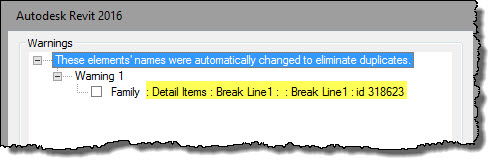
What he describes is the result of worksharing and multiple users loading the same family in their own local files. Revit sees multiple versions of the same file being loaded from different local files (users) and seeks to protect them by renaming the other versions it encounters. We see this sort of message when it happens.


This error and situation is easy to replicate.
  • Two users open local files for the same project
  • Each user loads a new family and the same type
  • Each uses Synchronize with Central (SwC)
The first person to sync will be successful without an issue but the second person will receive a warning about the family being renamed. If this is repeated enough, and by enough users at the same time, we could end up with family22 like he described.

For example, if eight people all introduce the same new family to the project then by the time the last person uses SwC there will be eight versions of this family listed in the Project Browser. This is what the Project Browser looks like after just two users think they both need to load a new double door and type.


Jason's post is focused on cleaning up after oneself and it IS important but it is also important to manage the loading of content and harvested details. It is equally important that people understand why these extra versions show up in the first place. Each time someone uses Load Family or Insert from File they must reconcile the warnings that appear before anyone has a chance to begin using the wrong version of the families that are duplicated.

I think it is worth restating that the subtlety of this issue is that this only happens when more than one user is introducing the same new family to the project (via their Local Files).

Once the family is part of the project (defined in the Central File) Revit doesn't get confused anymore. Here's what happens when I introduce the Break Line family he mentioned to the project via two users. Keep in mind that there is no Break Line family defined in the Central File at the moment. Each user loads the family, into their Local File, unaware the other user is doing it too. The first person to use SwC is fine but the second user sees this message (I expanded the warning to see the family description).


When the first user uses Reload Latest or SwC they'll both be able to see this in the Project Browser, listed beneath Detail Items.


Subtlety compounded with yet another subtlety...if the family is already defined in the project (Central File) but a new TYPE is loaded by more than one user then we end up with this situation in the Project Browser.

How do we avoid this situation?

As soon as we think we need to load a new family or type...STOP.

Who (on our team) is responsible for ensuring the content we need is available to us? There ISN'T any ONE person assigned to this? There should be. All new content should be requested, requests sent to or asked of this person. That person can delegate the task.

The goal is to avoid the situation where more than one user is loading the same new content.

Only ONE person needs to load the family(ies)/type(s) and then use SwC to make it available to everyone else on the team (they use Reload Latest). We are working on the same project after all.

To close and return to what inspired my post, Jason went on to write that they've abandoned using Detail Components in their details because of this issue. Tragic. They (the detail families) aren't the problem; Revit's worksharing behavior and user habits are. I hope he'll revisit that decision.

Friday, November 06, 2015

Preserving the Active Workset

The Active Workset is a user setting. We can each work using a different Active Workset.

However there is a circumstance where I can affect what the Active Workset is for others.
When I Synchronize with Central (SwC) my Active Workset will be the one any user that OPENS the project afterward will see. That is true until another user uses SwC. Then anyone who creates their local file after them will inherit their Active Workset...and around the bush we go.
It's important to remember to check the Active Workset as soon as your Local File opens.
Keep in mind that other users that are already working in the file will not see a change, their own preference will remain the same. It affects anyone who creates their local file later.

We can agree as a team to always use SwC with a specific Active Workset in play. I can't really expect that to happen every time if I have difficulty remembering to set the Active Workset correctly for my own purposes. I just try hard to remember to check the Active Workset setting before creating any new elements AND especially as soon as I get my Local File open.

We can also remember to take advantage of the Gray Inactive Worksets feature (see image above) to help make it more obvious that we aren't using the correct Active Workset.

Thursday, August 20, 2015

Worksharing Monitor is Dead - Long Live Worksharing Monitor

Well it took a LONG time but Autodesk has finally made the Worksharing Monitor application available for Revit 2016. I was thinking that it being missing was a test of our commitment to it. "Will they really miss it? Do they use it?"

Well I missed it and appreciate it coming back to life.


Long live Worksharing Monitor...at least until it truly isn't needed anymore...