Answer: When you are dealing with sheet families, projects and shared parameters.
You have this piece of information that applies to every sheet in your set. You want to enter it once and have it appear on all sheets. Easy right? Shared Parameters to the rescue again!
So you’ve added the parameter to the sheet family and you are ready to use it in your project. First you’ll have to “connect the dots”, meaning, add a Project Parameter to the project so Revit will understand what to do with the shared parameter it finds in the sheet family. Here’s where it gets a little fuzzy…
Naturally you think you should set the shared parameter to Type, yet when you do neither Drawing Sheets or Project Information appear in the list any longer. What?
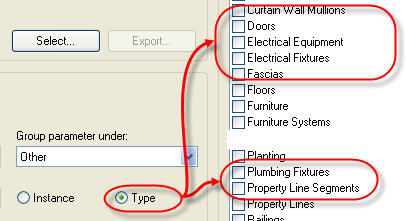
So here’s the deal, you only need to set the parameter as Instance. Revit takes it from here…

When you select Project Information from the available categories Revit will apply the parameter as a Type to the project and it will apply to all sheets when you enter a value once, either on a sheet or from Menu: Settings>Project Information.

Fwiw, when you choose Drawing Sheets from the available categories Revit will apply an Instance parameter to each sheet and you can have different values of each sheet. You edit this value from View Properties, not the properties of the sheet.
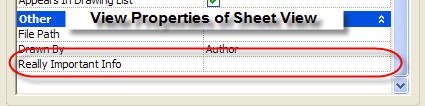 Confusing isn’t it?


2 comments:
Hi Steve,
I know this is an old post but I tried it today in 2014 and when I change the parameter in project info it does not change it for all sheets but rather acts like an instance parameter.
Any ideas why?
Stills works the same for me. Do you see the parameter you created within the Project Information dialog? Is it also available in the properties of sheet views? If so then it's likely you have assigned the parameter to both Project Information and Sheets.
It must be assigned to Project Information only to show up on all sheets. If assigned to Sheets then it is a unique value per sheet.
Post a Comment