Welcome to Steve Stafford's Blog ~ Revit OpEd = OPinion EDitorial ~ My view of things Revit, both real and imagined.
Thursday, April 28, 2016
Revit 2017 - Associate Family Parameter Tool Tip
Revit 2017 is missing the tool tip for the Associate Family Parameter button that it took awhile to get. Now it's tool tip-less again.
It makes me sad for that little sneaky button :(
Wednesday, August 26, 2015
Filter Dialog and the More Parameters Button
A small part of a recent exchange at RFO prompts this post.
There is a sneaky button next to the Filter Rules drop down list box. If you click on it (the button with the ellipsis ... ) it will open the Project Parameters dialog. Using it implies or suggests that choosing a parameter from the list, if any are there, will assign the parameter to Filter by. It doesn't do that. It is side door access to creating a Project Parameter. A side door because it allows us to do that without bailing out of the Filter dialog first to do it.
Clicking on the button is the same as choosing the More Parameters option at the very bottom of the list of parameters.
It might be a little more obvious if it said Create Parameter instead?
Oh so subtle...
Sunday, August 18, 2013
Schedule New Row
The majority of the time we are likely to use it to insert a new Data Row. Since the Insert Above and Insert Below only is relevant or available when working on cells in the header they are far less likely to be used. I think Data Row ought to be a separate button. The other two options could appear to the side and as two buttons, one above the other, if we click on a cell in the header.
The current process adds clicks to what used to be a single click experience. Just say no to more clicks, it's a clicktastropy!
Sunday, February 03, 2013
Radio Buttons
They are NOT named because of their shape or appearance.
The name is derived from the way radio station selection worked on car radios, more consistent with older car radios perhaps than current technology (image found at Web Developer AtlanticBT).
For what it is worth, if you do an image search for "radio button" you won't see anything car or radio related, just a lot of examples of software using this radio button concept. If you search for "car radio button" you'll probably find the image I found above.
When you press a button for your favorite station whatever station was selected gives way to your new selection, only one station can play at a time. The same is true for these so called Radio Buttons in Revit. Whenever you encounter a button like these only one can be selected at a time.
How's that for a little pursuit of trivia?
Tuesday, November 15, 2011
Sneaky Buttons
There are other Reviteristic buttons...read the first POST if you are interested.
Sunday, October 05, 2008
OK and APPLY
The APPLY button "applies" the changes you made but does not close the dialog.
The OK button "applies" the change AND closes the dialog.
You do not have to click Apply AND then OK. If you are done making changes click OK. If you want to see your changes first, click APPLY.
Keep in mind if you click CANCEL after using APPLY Revit does not commit any of the changes you made. The OK button commits changes to the database.
I mention this because I see seasoned and new users doing this all the time.
Wednesday, July 23, 2008
Dept. of Reviteristics - Sneaky Buttons
I call any button in Revit that doesn't look like "normal" buttons that we are used to, "Sneaky". The most sneaky of all is the little rascal in the Family Editor that lets you associate parameters to other parameters. This is the one.

Yeah the one with no tool tip...no hint what it might do. For those afraid to click on stuff it can be positively paralyzing. Just try telling someone like that to click and watch the hesistation. They're thinking, "Is Steve trying to make me crash Revit or what?".
I think this sneaky button is definitely a Reviteristic.
Thursday, August 25, 2005
Sneaky Buttons
Not those campaign buttons with pins but the button you push…or rather click with a mouse. There are a few pesky buttons in Revit that new users find strange. Lets take a look at em?
First up is the “EDIT” button, the long thin one you see when you visit the properties of walls, roofs, floors etc.

Yes it is a button even though it is really thin and long…don’t be afraid, click it! Don’t be fooled when you see this button lurking next to parameters like View Range, Visibility or Advanced Model Graphics either.
Next up, the material button. It is invisible until you do something, like click in the field that shows the material name. Again this is lurking in the properties of objects and in several locations.

After you click the area listing Default Wall as in the image above you see this:

Yes, again that little horizontal line with a down arrow IS a button too, clicking it will load up the Materials dialog
What’s next…hmm...how about the “LIST BOX” button? It looks like this before you do anything…
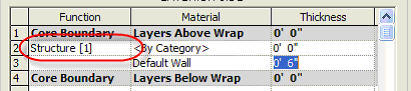
Pretty innocent looking, in fact you have no idea there is a button lurking here either, but as promised there is! Click inside the field and you should see this

Click on that little “V” and you’ll get this, a list of choices.
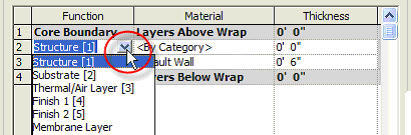
This little guy shows up all over the place, best get to be friends quick!
Anymore to talk about? How about the family editor’s link parameter button? That’s a good one too!

Talk about low profile and sneaky!! This one is lying in the bushes waiting to bite your ankle. Clicking on this button will allow you to choose a parameter to assign to the parameter the button shares a row with. In the image above this button is tied to the Offset parameter in the family, an instance parameter by the way…uh oh…here we go talking about parameters again.
Yet another…the “Corporal” (like the stripes an Army Corporal would wear)…actually the button is the entire blue bar yet the buttons are meant as a indication what will happen, namely the list will contract to hide the list of parameters in the group.

What? Another one? Yes there is, the little expand button for the Dynamically Modify View feature.

A little click and you get.
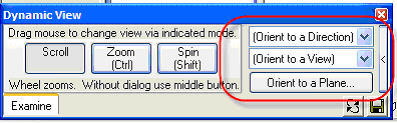
The dialog expands to show more options. Then if you click the button at the far right it contracts again.
Quite a few quirky buttons eh? Hope it helps!!


