A question popped up at RFO the other day. A member found Revit offering him a family as a possible workplane to chose when using the Set workplane option. It's perfect for the Dept. of Subtle!
When you use a family as a host for a Face-Based family this new host status of that family causes it to be elevated in status, to being eligible as a workplane for selection now too. For example I've placed a desk and then decided to mount an electrical outlet on the inside face so I can plug in my little space heater (I'm making this up as I go...).
You can see the Desk is now offered to me in the Workplane dialog. So don't panic if you start seeing families in this dialog. It just means they are hosting a party.
Welcome to Steve Stafford's Blog ~ Revit OpEd = OPinion EDitorial ~ My view of things Revit, both real and imagined.
Showing posts with label Workplanes. Show all posts
Monday, March 30, 2015
Wednesday, February 13, 2008
Once Upon a Workplane - Seeing is Believing
I wrote the bulk of this post nearly two years ago but apparently never finished it. Better late than never I suppose. In Once Upon a Workplane I wrote about the role of reference planes and lines. No mention whatsoever of how you actually change the Revit working environment to use or establish a new workplane. So now I will…you can do this in most views; except for schedules, legends, camera, drafting and sheet views.
Setting a workplane or making it visible is possible via the menu, a defined keyboard shortcut or toolbar.
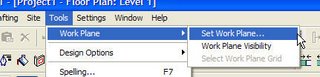
The menu route...
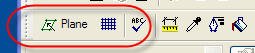
Or the toolbar route...
Keyboard shortcut route...There is no default keyboard shortcut, you'll have modify the keyboardshortcuts.txt file to assign your own. There are three commands you can assign; Set Work Plane, Work Plane Visibilty and, if the workplane is already visible, Select Work plane Grid
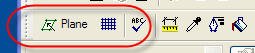
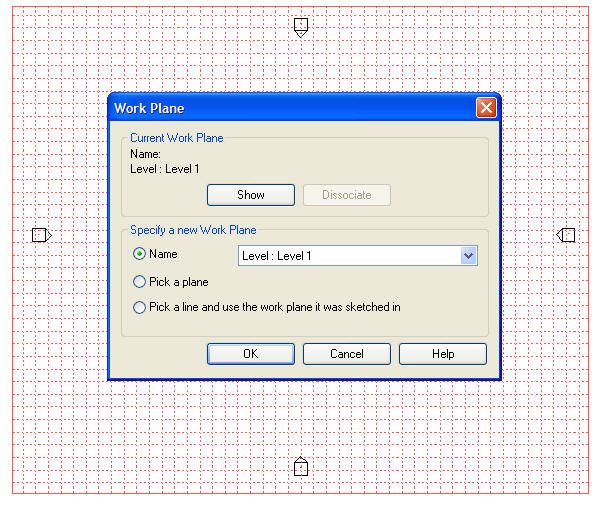
Clicking the Plane button opens the Workplane dialog box, doing this in a floor plan view will look like this, notice the grid that is temporarily visible while the dialog is open?
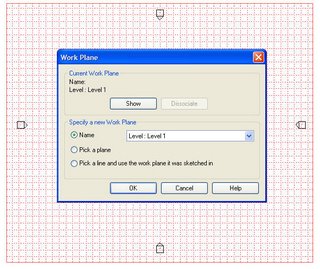
First option to establish a different workplane is Name via the drop down list next it. Revit will offer a Level, Grid Line or a Reference Plane that has been named in this list.
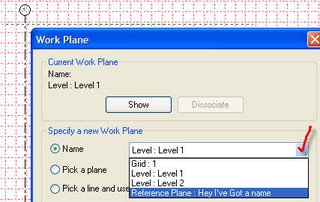
The second Option is Pick a Plane. You must either be able to select a Reference Plane or any planar surface of an element within the view. With Workplane Visibility on you can confirm that you succeeded. (You can also click the Show button to focus on the surface you've selected if you open the dialog again)

The Third Option is "Pick a Line and use the workplane it was sketched in". Again you'll have to be able to pick a line which assumes there is one to pick!

When you select an Element Revit will sometimes offer you the Edit Workplane button on the Options Bar.

This permits you to change the assigned workplane of a model line, an in-place family as well as work plane based families, to name a view. When you use this option you will only be presented with work planes that are parallel to the one already in use. To moved your element to a different work plane you can temporarily make the new one parallel and then reposition it again.
Setting a workplane or making it visible is possible via the menu, a defined keyboard shortcut or toolbar.
The menu route...

Or the toolbar route...

Keyboard shortcut route...There is no default keyboard shortcut, you'll have modify the keyboardshortcuts.txt file to assign your own. There are three commands you can assign; Set Work Plane, Work Plane Visibilty and, if the workplane is already visible, Select Work plane Grid
Clicking the Plane button opens the Workplane dialog box, doing this in a floor plan view will look like this, notice the grid that is temporarily visible while the dialog is open?

First option to establish a different workplane is Name via the drop down list next it. Revit will offer a Level, Grid Line or a Reference Plane that has been named in this list.

The second Option is Pick a Plane. You must either be able to select a Reference Plane or any planar surface of an element within the view. With Workplane Visibility on you can confirm that you succeeded. (You can also click the Show button to focus on the surface you've selected if you open the dialog again)

The Third Option is "Pick a Line and use the workplane it was sketched in". Again you'll have to be able to pick a line which assumes there is one to pick!

When you select an Element Revit will sometimes offer you the Edit Workplane button on the Options Bar.

This permits you to change the assigned workplane of a model line, an in-place family as well as work plane based families, to name a view. When you use this option you will only be presented with work planes that are parallel to the one already in use. To moved your element to a different work plane you can temporarily make the new one parallel and then reposition it again.
Subscribe to:
Posts (Atom)