My post last Saturday reminded Daniel Stine of a situation where he used a similar technique.
Dan writes:
In an Electrical Equipment schedule, we want the Room/Space number to be listed automatically. However some items are not located within a room. So we use a Yes/No parameter (in the family) and a calculated value (in the schedule) to switch from automatic to manual. In the example below, the rooftop equipment is not within a room and would produce a blank cell if the schedule column just listed Space:Number. With the toggle, we can type in a custom value; a word in this case.
These are the two manual parameters associated with the content:
Calculated value in Electrical Equipment schedule:
if(Enter Manual Room Number Name, Manual Room Number Name, Space: Number)
The follow parameters need to be added to the schedule, but hidden:
Space: Number
Enter Manual Room Number Name
Manual Room Number Name
Thanks Daniel!
Welcome to Steve Stafford's Blog ~ Revit OpEd = OPinion EDitorial ~ My view of things Revit, both real and imagined.
Showing posts with label Instance Parameters. Show all posts
Tuesday, May 05, 2015
Saturday, May 02, 2015
Optional Instance Override
Twice in one week I've seen people asking about using a Type Parameter for a door swing and wishing they could occasionally override it without making a new type for the door. That jogged my memory a bit and I remembered that Aaron Maller had told me about a technique he's used on the content he has built for Beck Group. It's quite clever, thanks Aaron!
These are the parameters you need (parameter names are italic - pick better names if you want):
This is what it looks like applied to two door types; two are set according to their type and the other two are overridden to different angles.
This is what it looks like in the Properties Palette when a door is selected. Check the option and change the value or leave the default value.
These are the parameters you need (parameter names are italic - pick better names if you want):
- Type parameter (Angle: Swing - this the standard angle you want to use)
- Instance parameter (Angle: Swing Override - this is the default value for the override)
- Instance or type parameter (Yes/No: Override Swing - this is the switch to flip)
- Instance parameter (Angle: Swing Applied - Formula: if (yes, instance, type)
This is what it looks like applied to two door types; two are set according to their type and the other two are overridden to different angles.
This is what it looks like in the Properties Palette when a door is selected. Check the option and change the value or leave the default value.
Yes! You can have your Type and Instance too!
Friday, November 22, 2013
Change Parameter from Type to Instance
It's fairly well known that we can change length parameters from type to instance via the Options Bar trick. What is less well known is that we can change other parameters too. I was trading a couple emails with Jose Fandos of Andekan about Manufacturer and Model being Type parameters. He shared a trick in a past blog post. His post explains how to change system parameters from type to instance. We refer to it now as the Vegas Trick because we were attending Autodesk University in Vegas when the subject came up at the bar.
In response to reading a post at AUGI I was curious about doing this for system parameters that Revit groups under Identity Data. Practically all family categories have those built in. That seems to make it impossible to do the switcharoo that Jose wrote about in his blog post, which related to an electrical parameter. However Jose noticed that in Revit 2013 the category Profile > Split Profile doesn't have identity data parameters. Fwiw, in 2014 they've changed that, in fact there is no "Profile" category or Split Profile" sub-category at all in 2014. I was trying to pull it off in 2014 and it took his refusing to be boxed in thinking to try it in 2013.
The process looks like this (using Revit 2013):
Keep in mind that we'll still get warned (editing a schedule) that the changes we make to the parameter will affect many instances of the type.
In response to reading a post at AUGI I was curious about doing this for system parameters that Revit groups under Identity Data. Practically all family categories have those built in. That seems to make it impossible to do the switcharoo that Jose wrote about in his blog post, which related to an electrical parameter. However Jose noticed that in Revit 2013 the category Profile > Split Profile doesn't have identity data parameters. Fwiw, in 2014 they've changed that, in fact there is no "Profile" category or Split Profile" sub-category at all in 2014. I was trying to pull it off in 2014 and it took his refusing to be boxed in thinking to try it in 2013.
The process looks like this (using Revit 2013):
- Starting in the category you really need
- Add a value to each parameter you want to change
- Switch to category Split Profile
- Parameters become editable
- Change each to Instance
- Change back to the correct category
- Now you can control them by instance
Keep in mind that we'll still get warned (editing a schedule) that the changes we make to the parameter will affect many instances of the type.
Friday, March 16, 2012
Can't Change a Parameter from Type to Instance
A re-post of something I wrote back in 2005, sometimes the oldies just don't get old.
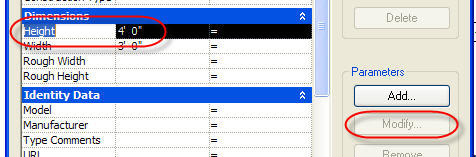
Family editor tip: When you have a Type parameter that you can’t change to Instance in the Family Types dialog box because the modify button is inactive...(meaning it is a stock "factory" parameter)

Don’t fret! Close the dialog box, select a dimension that is assigned to the parameter and take a look at the Options Bar.

Notice the check box next to Instance Parameter? There you go! Thanks to Steven Campbell for the wake up call! Sometimes the answer is as plain as the nose on your face!
Family editor tip: When you have a Type parameter that you can’t change to Instance in the Family Types dialog box because the modify button is inactive...(meaning it is a stock "factory" parameter)

Don’t fret! Close the dialog box, select a dimension that is assigned to the parameter and take a look at the Options Bar.

Notice the check box next to Instance Parameter? There you go! Thanks to Steven Campbell for the wake up call! Sometimes the answer is as plain as the nose on your face!
Friday, February 10, 2012
Grips Location - Reference Planes vs Lines
When you apply an instance parameter to a strong/weak reference plane you'll get grips that let you alter the element directly in the view. When you do this to a reference line you get them too. There is a difference between the two Reference types in how they affect the grips though. Here's a pair of "desk" families. Compare the two forms in the image below, look carefully at where the grips are located in this one.
If you build the "bones" with Reference Lines and limit them to the size of the geometry they are meant to constrain you can define where the grips are displayed with much more control.
Don't worry, be "Grippy"!
If you build the "bones" with Reference Lines and limit them to the size of the geometry they are meant to constrain you can define where the grips are displayed with much more control.
Don't worry, be "Grippy"!
Subscribe to:
Posts (Atom)