Just want to know how to make a drawing list? Mike Hardy-Brown posted a tips & tricks article on
HIS SITE.
If you need to include your consultant's drawings in your list there are two common methods and a slightly distant third:
Dummy Sheets, Annotation text list and image file of an external list.
The
dummy list means you create a sheet for each of the consultant's sheets, supplying only the number and name.
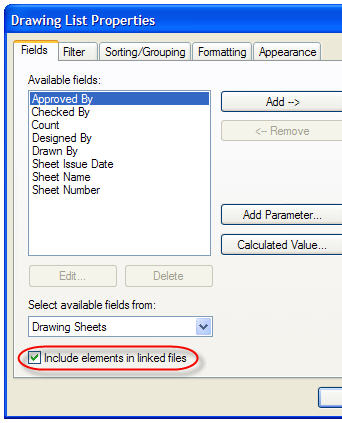
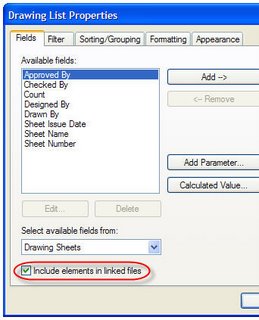
This list will clutter your project browser so you might consider putting this list in a separate empty project that you link back into your project.When you make the drawing list check the box to include linked files so you can schedule them too.
One bonus that comes from using this approach is that you can also create dummy detail or drafting views that correspond with details in your consultant's set. This will permit you to use the reference other view option to create callouts that refer to their details.

I have done this in the past to coordinate details with overlapping site information like concrete stairs and railings that approach a building.
The second method using text means you've got to copy and paste the data from another source into a text object in a Revit view. You could just type it all in yourself too.
Last some folks will just create a pdf of the list supplied by others and save in bmp or jpg format so it can be imported into Revit.